Showing posts with label Chrome extensions. Show all posts

Setting your Chromebook desktop to the Bing image of the day


Until recently I had set my Chromebook to regularly update with an interesting daily desktop image. The option to do this is in the settings under Appearance > Wallpaper > 'surprise me'.

Setting your Chromebook desktop to the Bing image of the Day
These kangaroos are brought to you by Bing.
It occurred to me that the Bing image of the day was often far more beautiful than what is offered under Chrome OS and there must be a way to change the desktop automatically to the Bing image of the day.

A quick search in Bing led me to the Chrome Web Store, and there it is, the Wallpaper from Bing for Chromebook app. It only works on Chromebooks, but there are other workarounds for different platforms which I may go into in detail in another post sometime.

'Wait!' I hear you cry, with horror: 'you Binged it?!? Why didn't you Google it??'

Well, I quietly changed from Google to Bing a few years ago. There are a number of good reasons for this.

Back in the day, well the nineties, when music was good, and we did actually believe that things could only get better (that's a Dr. Brian Cox joke) I used Netscape Navigator and searching the web was a rather hit and miss affair. A typical web search would throw up thousands of results and you would spend half an hour scrolling through irrelevant results. I think I was in the middle of a troublesome and tiring search through Ask Jeeves or Yahoo or something similar when a friend asked me why I wasn't using Google.

'What's Google?' I asked. This was around the end of 1998 and the first iteration of Google's search engine had just appeared. I wasn't disappointed, as you can imagine, and in the intervening years, the word 'Google' has become synonymous with searching itself. Not only is your preferred target on the first page of results, but it also predicts your search term and completes it for you.

A couple of years ago Microsoft launched their 'Bing Challenge'. Switch to Bing and see if you notice the difference. Being the naive sort of fellow that I am, I gave it a chance and noticed only that Bing seemed to give slightly better results and came with a beautiful image of the day.

But there are a few reasons for sticking with Bing, such as better image search, but here is the main reason...

...You get paid to use Bing.

With Microsoft rewards, you can earn points each time you search. Points add up and can be spent on sweepstake entries or saved up for gift cards for some of your favourite department stores. The more you search, the more points you earn (up to some daily limit). You can even donate your points to charity.

Microsoft rewards for using Bing search
Some of the offers available for using Bing.

Well, that's all from me for today. If this post hasn't made you rage-quit the Internet, then you might like to stick around and read about some other Chromebook posts, or maybe you like calendars instead?

Sharing a usb drive to chromebook, raspberry pi, Android and Windows 10

I noticed that my new home router comes with a USB port. I figured that it was possible to connect an external hard-drive and use my router as a home file server. This means that I will be able to share files between my Chromebook, Raspberry Pi, Android tablet and Windows machines.


Here are the steps I used by device.

First steps
Plug in your usb drive and check the admin settings on your home hub.  I get there through the default address of my router which is 192.168.1.254 and yours is likely to be similar.  It is a good opportunity to change the admin password at this stage.

In Windows 10
Access to the shared network drive is as easy as opening the file explorer and typing the address into the address bar eg //192.168.1.254

Your files are now ready to be accessed on all your devices.


On a Chromebook.
It would be useful to access my PC files on my Chromebook as well.  I used File System for Windows.


Your shared files are now available in the ChromeOS File app.

On Raspberry Pi under Raspbian

1. You need to mount the network drive into the Raspbian file system.  To do this you need to have cifs-utils installed.  My Raspberry Pi 2 came with this pre-installed.  You can check whether it exists or not by running the following command: dpkg -s cifs-utils

2. Should you need it, you can install cifs using the command sudo apt-get install cifs-utils 

3. Next create a directory on your pi for where you want to mount the network drive: sudo mkdir -p /media/network/public

4. You need to edit the etc/fstab file in order to mount the network drive. You may need to give yourself permission to do this, so navigate to your /etc folder and type chown pi: fstab (where pi is your username).

5. Now open the etc/fstab file in your text editor and add the following single line:
   //192.168.1.254/usb1 /media/network/public cifs defaults,rw,username=pi,password=yourpassword,domain=domain 0 0

  Note that the first part is //IP ADDRESS OF ROUTER/directory name of network folder
 If your network folder has any spaces in the name, eg "My Documents", then replace the spaces with \040, eg My\040Documents.
 The second part is the path to the folder you created in part 3.
 You will need to put in your own username and password .

6. Now mount the drive using sudo mount -a


Android

There is no single file explorer app for Android, but many of them allow you to access network drives. I use ES file explorer which has a nice 'search' feature which will find your network drive in a few seconds. You can also pin your network drive to your desktop for easy access.

Accessing your network drive in Android

Windows Phone

I have downloaded Metro File Explorer to access my home network files on my Lumia 950.


That's all for now (I've run out of devices to try). It's time to backup to my file server and tidy up a bit.

The Great Suspender

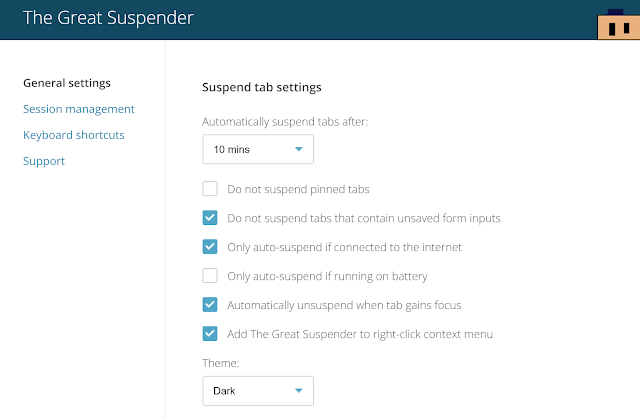
Here is a Chrome extension that will save you some battery life on your laptop.  If you are like me then you will have plenty of browser tabs open at once.  Each one demands time on the processor regardless of  whether you are actually using it or not, or even need it to be constantly running.  The Great Suspender Chrome extension pauses tabs that you haven't used for a while which will make your life better by giving you more precious time with your battery.

Easy to use settings for making your life better.
We first mentioned the Great Suspender in our Flipboard magazine - Computer Abuser - a magazine for computer users. I update this fairly regularly with useful stuff for computer users, so do please go and check it out now.

Still awake?  You might like our earlier posts on wasting time on The Web, or using Linoit the noticeboard.

Label

World Karma Game