Showing posts with label raspberry pi. Show all posts

Notey: a command line notebook

Introducing Notey: command-line notebook.

The glorious ASCII graphics of another command-line session.

I have a real need to keep and remember short snippets of text, for example, my phone number, real name and world-domination plans. Over the years I have used many applications, such as OneNote, Google Keep, Zim, Treepad Lite, Sticky notes etc...etc, but I feel the need for a simpler app, one without any graphical fuss and nonsense. I want the same program to run just as well under Windows as it does under the Linux shell or on my Raspberry Pi. So, with the bit of time I have had on my hands in the current UK lockdown, I have built Notey: command line notebook.

Introduction

You can think of Notey as a bit like Google Keep, but you interact with a series of text commands. I am not 100% serious about this, however, it does work well and is quite powerful in terms of the actions you can perform on your data. There is a comprehensive help system built-in and the very first command you will want to learn is 'help'.
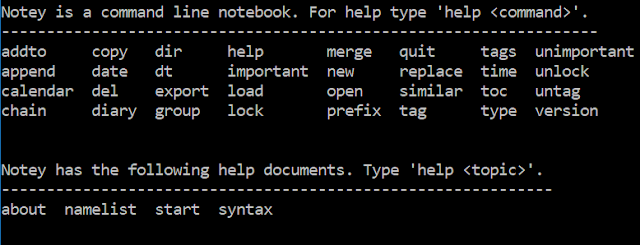
32 commands are available, but you are not expected to remember them all.

Making new pages

Notey is simply a big list of named 'pages'. The first thing you will want to do is create a new page. This is achieved with the 'open' command, for example:

> open cat
This will prompt you to create a new page called 'cat'.
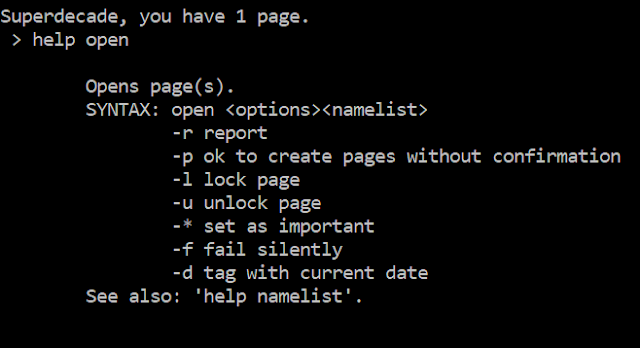
The in-built help documentation for the 'open' command.

As you can see, the 'open' command is used for creating new pages as well as opening existing pages. Most commands in Notey can take various options as parameters (shown above), for example, if you are really sure that you want to create a new page called 'cat' (and not open an existing page called 'cat'), you could type the following:
> open -p cat
Commands can take multiple options, for example:

> open -rpl*d cat

Will create a new page called 'cat', lock it so it cannot be accidentally deleted, automatically tag it with today's date and mark it as 'important'. The option -r then returns a little report showing you what Notey has been up to whilst you were waiting, as you can see in the image below.
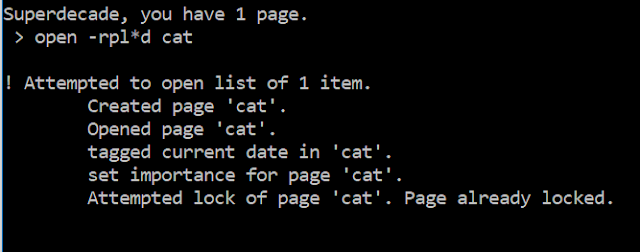
Isn't everyone's cat important?

Editing pages

When you have a page open, you will see the page name appears just before the prompt. Pages that are thus 'opened' can be edited in a number of ways. You are most likely to want to add some text to this page.

For example, you could try the following command:

> append Not a dog.

This will enter the text "Not a dog." into this page. Except - it probably won't! You will get an error. Remember how we locked the page in the previous command? Locked pages cannot be (accidentally) edited, so we have to specify that we intend to purposefully unlock our page, edit it and then lock it again.

Try:

> append -ul Not a dog.
> append -ul Like's fishes.

OK. Big wow! You will probably want to see your handiwork. To view a page on the screen, simply type:

> type
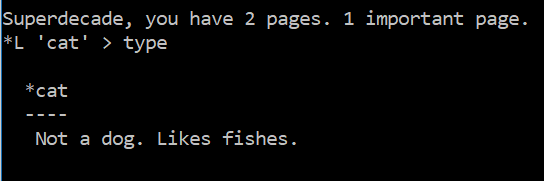
Notey has rather helpfully done a lot here. It has reminded me of my own name, as well as the number of pages I have written. It is showing me that my page 'cat' is currently open and that it is 'locked' and 'important'. When I type 'type', I get to read the note on the screen.


Currently, there are related commands for editing your pages, for example: 'prefix' and 'replace', but append will do for now.

Tags

Pages in Notey can be tagged so you can find related information easily.

Let's tag our page with a list of tags:

> tag pets,animals

This will add two tags, 'pets' and 'animals' to the current 'cat' page. We already tagged our page with the current date with the 'open -d' command earlier. Forgotten already? I don't know! Actually, it is easy to get a little confused at times when using Notey, but thankfully there are a number of ways of getting information on what you are doing.

Table of contents

You will want to see what pages you have available in your notebook. The 'toc' command brings up a table of contents. You may want additional information such as a page summary, or list of tags.

Try:

> toc -t

This will display all the pages in the book including a summary of the tags for each page.
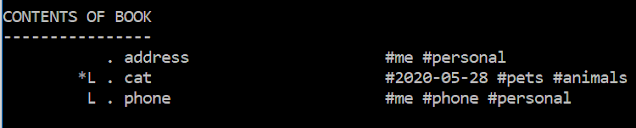
Now I will never forget my own address again.

You can also specify a search term to filter the table of contents. For example, need to see only those pages with 'cat' in the title? Try:

> toc -t cat

If you need more advanced filtering then you need to get your head around the 'group' command.

Grouping

Groups allows you to group pages based on a search term or tag name or other property. This allows you to apply commands to all the pages in the group. For example, if you need to add the text 'remember to feed' to all pages with 'cat' in the description, that have been marked as 'important' and have been tagged as '#animals', then you need to get your head around groups.

> group -t pets

Will find all of the pages with a tag '#pets' and put them into the group.

> toc -t@

Will show the table of contents for the current group.


If you search the help documents for the various commands, you can see that the '@' symbol refers to 'all pages in the group'. For example, if you want to append some text to all the pages in the group, try:

> append -@ Remember to feed.

OK - admit it! How many note-taking apps let you edit multiple pages at the same time?

This is the power of groups in Notey. There is also an 'addto' command, which allows you to manually add pages to the group, and the 'similar' command, which lets you see similar pages.

Similar pages

OK, so, you have spent your time carefully categorising your notes with sensible names and a comprehensive library of tags. Now, it is time for the 'similar ' command. It groups pages from your notebook that are 'similar' to the currently open page.

Namelists

You will frequently want to apply the same command to multiple pages at once. This is where namelists come in.

Try:

> open cat,dog,unicorn

This will prompt you to create three pages called 'cat', 'dog' and 'unicorn' respectively.

You can use the '@' symbol to refer to the current group. For example:

> del cat,unicorn,@

Will prompt you to delete the pages called 'cat', 'dog' and whatever pages are in the current group.

Other stuff, briefly...

A quick tour of some of the other features of Notey.

Your pages can be exported to XML, HTML, plain text or Treepad Lite files.

My Notey notebook as a Treepad lite file (OK, more about Treepad lite another time - spoiler alert - it is no longer a thing but that does not mean it is gone forever!)

You can use Notey as a diary. Simply type:

> diary

This creates a page with the current date for you to record all of your evil machinations from the day (or your good deeds).

You can get a calendar for any month (within reason):

> calendar 2020 06
Next month. Unless you are living in the future (which you most likely are) in which case you know more about June 2020 than I do. It can't get any worse can it? Can it?! Why are you laughing??!

Chain

Notey can accept multiple commands on one line using the 'chain' command.

Eg:

> chain open cat; tag animals; lock

In this case, Notey will diligently open the page 'cat', tag it '#animals' and then lock it. It is vital that each command is separated by a semi-colon.

Future updates

Some things that still need doing:
  • importing pages from files;
  • running scripts from a file;
  • hiding sensitive data;
  • exporting to other formats (MS-Word, anyone?)
There are, no doubt, many bugs, and a lot that could be done more efficiently. But the source code is provided for your entertainment.

Th..th..that's all folks!

Well, that's it for this introduction. I hope you can see that Notey is a powerful personal information management system. There is much more that it can do, but you will have to explore this yourself. Remember it is just for fun and not super secure so it is not a good idea to store sensitive information at this stage.

Notey is currently in an alpha release stage. You are free to download either the python source code or the Windows executable version and do what you like with it. I am sure that I will be adding more functionality soon, and I will be encouraged by anyone who finds it useful - so Tweet ME.


...or click this OneDrive link below...


If you enjoyed this post, then it shows that you have great taste, and you might like to read more of my stuff

Search for the most precious substance in the universe


Who thought it was unobtainium?

Riemannian is a text-based space adventure game written in BASIC. I am not certain of its origins but it was converted to BBC BASIC by Janny Looyenga (and I think it was released as either a Beebug, or an Acorn User magazine disk).

I have just spent my afternoon converting it to run on the Raspberry Pi under RISC OS and subsequently on the PC under BBC BASIC for Windows.

In Riemannian, you control a spacecraft, which teleports randomly around a text-based Teletext universe. You have three resources that need to be managed: oxygen, fuel and provisions. Your quest requires you to mine as much of the elusive riemannian ore before your resources run out and you are unceremoniously dumped back to the BASIC prompt.

On your journey, you will encounter aliens, both friend and foe. Some will wish to sell you commodities, whilst others try to blow you away with their laser guns and robot slaves. There are also some other special encounters, but I wouldn't want to spoil your fun of encountering these yourself.

This world is very notable for the Uslian tree ant and its inhabitants' exceptional loathing of sit coms

I have covered how to convert BBC microcomputer programs to RISC OS BASIC programs in another post.

The main problem I had to overcome is the fact that, in Riemannian, much of the gameplay is time-based. You have to press the right key at just the right time to zap an alien or mine the planetoids. Upon inspection of the code, two facts became obvious. Firstly, the code was a horrible mess of spaghetti (probably indicating that it originated on a less elegant 8-bit machine to the BBC micro) and second, much of the timing revolved around how many loops the computer could perform whilst waiting for your input. As my target machine, the Raspberry Pi, is a much faster machine, I had to alter these timing loops so the original gameplay was restored. I think I have managed whilst also making the game a little more forgiving than the original.

From a time when mining was much more about guesswork (just like modern Fracking).

+1 Geek Experience Point awarded to by Janny Looyenga for the original BBC BASIC conversion.

I am going to assume that due to its age, Riemannian is currently in the public domain. So you can download a copy from my OneDrive. If you are the owner of Riemannian, and it is your sole source of income, then I am really sorry and I will remove this link as soon as you get in touch.

I've provided four versions:

  • A RISC OS BASIC file
  • A plain text file containing all the code
  • A BBC BASIC for Windows file
  • A Windows executable file (it is totally NOT a virus, but if you are in doubt run it in a sandbox such as Virtual Box rather than trusting a strange blogger on the Internet).

If you enjoyed this post, then that is it, you have reached the very bottom of the Web, but you might like some other conversions of ancient BASIC programs, such as this one, or this one, but especially this one.

That's it for today. I will be back later for more geeky stuff - stay tuned!

Stuff you can do with RISC OS for Raspberry Pi

My avid reader will know that I am a big fan of running RISC OS on Raspberry Pi.

I have already written a post answering whether you can use RISCOS as your main computer. The answer was yes (sort of). If you were not convinced then this is a post about stuff you can get your RISC OS Raspberry Pi computer to do right away.

Never forget to go to work again!
Shown above is the alarms section of the clock application and it is a surprisingly good alarm system. You can set multiple alarms, including specific dates of the year on various recurring patterns. There are two things I like about this. First, by having it in the 'run at startup' folder you get an analogue clock with seconds hand in your icon bar - as close to a 'live tile' as you will get in RISC OS Pi. Secondly, you can have multiple alarms (I am not sure what the maximum is) and alarms can seemingly be set years (months, weeks or days) into the future. There are options for 'working week', 'repeating alarms'. There is a 'Task Alarm' which allows you to boot up another RISC OS Pi app at the particular time of the day - for example, to load the radio player just in time for the shipping forecast. Simply drag the appropriate app into the alarm dialogue box. This includes your own BASIC programs as well (rather exciting, no?) Repeating alarms can be programmed to run on particular intervals, or on the first Sunday of each Month.


Calculator
As you might expect, RISC OS has a calculator app, and it is as good as any you will find on your 'other' desktop machine or phone. Shown here is the programmer's calculator should you need to perform a left shift on a nibble, or whatever.


Happy New Year! What? Not another one!
As desktop calendars go, it is not as good as Window's 10 calendars with Outlook integration, but if you need to know the date of the next Friday before payday, then this will do plenty. It is also highly customizable, and I think the result looks good. Some operating systems don't even have a desktop calendar - I'm looking at you, ChromeOS!


NetRadio - highly recommended. 
My longtime reader will know that one day I hope to have a second reader on this blog. They will also know that I like to listen to a wide range of music as I sit back and relax with some knitting. The NetRadio app turns your RaspberryPi into an internet radio (oh, and before you ask, I don't record the top forty onto compact cassettes anymore, honest).


It's notepad
One of the main roles for my Raspberry Pi is to simply keep notes, records, and calculations. Between the simple but powerful StrongEd text editor (shown above) and PipeDream, RISC OS has this basic computing job covered. Pop over to the task window (F12) and you can navigate your text file library using the *BUILD <filename> and *TYPE <filename> commands. This, obviously, makes you feel more like a hacker even though you are really just writing your thank you letter to Santa. StrongEd is a little more than Notepad for RISC OS, featuring spell checker, split screen and various other features for the power user to enjoy.


Sometimes you need to know the distance to the shops in astronomical units.

Convert is my go-to app for converting various units. There are loads of units available, I'm just showing a small selection of the 'less common' ones.


Brrrr
Weather UK is an app for showing simple weather data for various cities in the UK.The data comes from the BBC weather feeds and clicking on the text will bring up a forecast in your browser.

And that's not it! One really awesome feature (for me at least) is that RISC OS will run most of your favourite BBC BASIC applications. I have already written a post all about this and I am currently in the process of converting various files from my BBC master 128 onto the Raspberry Pi. No doubt I shall be back really soon to write about this.

If you enjoyed reading this post, then do please share it with your friend. It would be great to have two readers! If you don't have a friend, then no worries, you might like to read about data logging on Raspberry Pi, or something random but similar.

Until next time...

Can you use RISC OS as your main computer?

The short answer is yes, sort of, but mostly yes.

The RISC OS desktop on Raspberry Pi showing the 'pinboard' and 'iconbar'

In my post on using the BBC Micro as your main computer, we decided that for a computer to be of any use, it must be able to do the following well:

  • Connect to the Internet and have a fast, secure browser.
  • Provide applications for workflow.
  • Provide applications for playing media files.

We'll look at these in turn, but first some information about this Operating System.

RISC OS was originally developed for the Acorn range of 32bit RISC computers in the late 1980s. That makes it older than 'Red Nose Day', GCSE examinations and the movie 'Die hard'. It was a time when plaid shirts were fashionable for men. If you turned on the radio you would suffer songs by Bros and Enya. Whereas you need not suffer Bros and plaid shirts anymore, RISC OS has continued to be developed to this day and is available for RISC architecture machines including the Raspberry Pi. In this post, I will be referring to RISC OS running on my Raspberry Pi 2.

This operating system is an advanced GUI-based operating system although many of its features will appear strange or unexpected to a modern user who has, perhaps, become habitually used to Windows or Linux. Nevertheless, despite its quirks, RISC OS is a joy to use. But can it be your main computer?

The Internet

The Raspberry Pi does indeed connect to The Internet, however, RISC OS will only support wired ethernet connections. The onboard wireless adapter will not work here.

Many of the applications for RISC OS are available through the online Pling store or the package manager. Some of these applications use network connections with little difficulty as you might expect from a modern OS. Sadly there are no applications for linking to your DropBox, OneDrive, Google or other cloud services. I use a second Raspberry Pi as a home file and web server and this serves files to the RISC Pi with ease.

The default web browser is NetSurf which is a little underdeveloped. Most modern web pages fail to render properly. JavaScript does not run and you can forget about Flash, other plugins and all your favourite browser extensions. It is possible to install a version of Firefox, however, it requires several dependencies that I am repeated failing to install properly. After a few hours of trying I have finally given in, but I may return to that at a later date.

My Blog as shown in NetSurf


Workflow

What your RISC machine can do here really depends on your workflow, however RISC OS is more capable than the BBC Micro so I shall cover some of the capabilities you might need.

For word processing, spreadsheets, text files and database work, RISC OS has a number of applications that are free (as in free pizza) to download from the Pling Store (or indeed, might even be bundled with your software distribution). Most notable applications are Fireworkz, PipeDream and StrongEd. It is worth noting that I don't do much word processing on the RISC machine, and none of these applications beat the Microsoft Office 365 suite on my Windows machine. Nevertheless, all of these applications are capable enough of being your workhorse. Fireworkz can open Rich Text Format files, so if you need to open your world domination plan from MS-Word, you may need to do some editing or conversion first.

Unless you are migrating thousands of files from Office 365 to RISC OS, you will find that your Raspberry Pi will be totally capable of most jobs here so I'm going to call it a 'pass'.

It is worth mentioning that I use my RISC machine to take and keep various notes. This can easily be achieved as an OS task. Simply hit CTRL+F12 to bring up a task window and type:

*build <filename>

Press ESC to finish.

A demo of Fireworkz as a spreadsheet program

If your workflow includes image editing or audio editing, then there are a number of applications available for you here, although nothing to beat your professional applications on your modern PC. Also, don't expect your favourite open source applications (GIMP, Audacity etc) to be available under RISC OS. That said, your RISC machine will perform this kind of workflow well, so it's another 'pass'.

It is highly likely that you will want to read a PDF document on your RISC machine. This is possible under the public domain PDF file viewer for RISC OS, however, I have noticed that it has failed to render some files that work perfectly well under Adobe and Edge on my Windows PC. Having said that, most documents have opened without problem on my Raspberry Pi, so we shall call this a 'pass'.

RISC OS PDF viewer showing a couple of PDF files displaying beautifully on my Raspberry Pi 2.

Media

I will skip to the end. It is a surprising 'pass'. In fact, I use RISC OS primarily as a media machine. The NetRadio application is perfectly capable of handling your internet radio needs, as well as being able to play MP3 format files. I think I once wrote a post about how I threw my DAB digital radio over the side of my ship after installing RISC OS.

Net Radio, perfectly capable of catching the BBC 4 puzzle for the day over your cornflakes as it is playing your pirate metal songs in the evening.
As for video files. I have managed to get MPG format files to work perfectly. Other formats with some difficulty or not at all.

My Pi


There are plenty of other applications available for RISC OS with many in active development. I generally have WeatherUK open at all times for my three-day forecast.

WeatherUK for your UK weather needs. Yes, it is snowing today, in March.

One of many useful apps for RISC OS
BASIC

One of the best features of RISC OS is that the BBC BASIC language is built right into the operating system. Whether you want the system to learn to program, so you want to write applications to get the computer to do what you want it to do, then BASIC is a good option. Simply press F12 and type:

BASIC

To exit the BASIC terminal and return to your desktop, type:

*DESKTOP

I have already covered BBC BASIC in RISC OS in another post, so I won't go into details here. You can also install a version of RISC OS (Pico) which boots directly into the BASIC prompt without any of the graphical 'fluff' discussed so far in this post.

Well, there it is. RISC OS will quite happily serve as a main computer based on the criteria we specified at the top of the page. If you haven't already explored it on your Raspberry Pi, then I thoroughly recommend it. You might find that you have other needs that I have not covered in this post, and you might also be equally surprised to discover that RISC OS has your back here as well.

If you enjoyed this post, and even if you haven't, then you might like (or hate) to read some more RISC articles on this blog. Maybe you just want to write a sticky note and pin it to a virtual board on the internet? Maybe you just want to kill some orcs?

More groovy patterns for Raspberry Pi

Following on from the last post about groovy patterns for Raspberry Pi, I present my latest program, another random walk.

It is a random walk similar to last time, however with this one there are three degrees of freedom (rather than horizontal and vertical) and rather than a line, the object displayed in a coloured 3D box.
This code is for BASIC V running under RISCOS on the Raspberry Pi. Copy the code, or download directly.

The code:

   10 REM Blocks
   20 REM T Street
   30 REM 2017-05-21
   40 :
   50 MODE 19
   52 delay = 0
   55 colcyc = 0
   60 angle1 = RAD(45): angle2 = RAD(20)
   70 size = 16
   72 LIMIT = 50
   73 DENSITY = 40
   80 xo=500:yo=500
   90 x = xo: y=yo
  100 dir = RND(5)
  110 PROCsetdir
  112 lc = 0
  114 dc = 0
  120 REPEAT
  140   PROCbox(x,y,size,angle1,angle2)
  141   t=TIME:REPEAT UNTIL TIME>t+delay
  150   x = x + dx: y = y + dy
  151   lc = lc + 1
  160   IF RND(6) = 1 THEN PROCchangeDir
  170   IF x<0 OR x>1000 OR y<0 OR y>1000 OR lc>LIMIT THEN
  180     x=xo:y=yo
  181     colcyc = colcyc+2: IF colcyc > 127 colcyc = 0
  182     lc = 0
  183     dc = dc + 1
  190   ENDIF
  191   IF dc>DENSITY THEN
  192     dc = 0:CLS:x=xo:y=yo:lc = 0
  193   ENDIF
  200 UNTIL FALSE
  210 END
  220 :
  230 DEFPROCbox(x,y,s,ar,au)
  240 REM draws a box at coords x,y
  250 REM where the coords are the lower left corner
  260 REM and s is the size of box
  270 REM and ar and au are angles
  280 MOVE x,y
  290 LOCAL up, right
  300 up = s*SIN(au)
  310 right = s*COS(ar)
  320 REM front side
  330 GCOL 2+colcyc
  340 MOVE x,y+s
  350 PLOT 85,x+s,y
  360 MOVE x+s, y:MOVE x, y+s
  370 PLOT 85, x+s, y+s
  380 REM right hand side
  390 GCOL 1+colcyc
  400 MOVE x+s+right, y+up: MOVE x+s, y+s
  410 PLOT 85, x+s, y
  420 MOVE x+s+right, y+up: MOVE x+s, y+s
  430 PLOT 85, x+s+right, y+s+up
  440 REM top
  450 GCOL 1+colcyc
  460 MOVE x+right, y+s+up: MOVE x+s, y+s
  470 PLOT 85, x, y+s
  480 MOVE x+right, y+s+up: MOVE x+s, y+s
  490 PLOT 85, x+s+right, y+s+up
  491 GCOL 0
  492 MOVEx,y:DRAW x+s,y:DRAW x+s,y+s:DRAWx,y+s:DRAW x,y
  500 ENDPROC
  510 :
  520 DEFPROCsetdir
  530 CASE dir OF
  540   WHEN 1
  550   dx = 0: dy = size
  560   WHEN 2
  570   dx = size: dy = 0
  580   WHEN 3
  590   dx = 0: dy = -size
  600   WHEN 4
  610   dx = -size: dy = 0
  620   WHEN 5
  630   dx = -(size*COS(angle2)): dy = -(size*SIN(angle2))
  635   WHEN6
  636   dx = (size*COS(angle2)): dy = (size*SIN(angle2))
  640 ENDCASE
  650 ENDPROC
  660 :
  670 DEFPROCchangeDir
  680 dir=RND(6)
  690 PROCsetdir
  700 ENDPROC
  710 :


Groovy patterns for Raspberry Pi

In a spare moment whilst I was waiting for some food to cook, I decided to play with the BASIC on the Raspberry Pi. I'm using the brilliant RISCOS for the Pi which comes with BASIC V and about a gigabyte of RAM.

I decided to create a 'random walk' in an attempt to create something that would look like an abstract map of a city. I am quite pleased with the results.

Pictures first, and then the code.

It's supposed to look sort of 3D, sort of.

It really pelts along on my Raspberry Pi
When the line wanders off the screen it starts again in the middle of the pattern with a slight offset and a new colour. Lines sometimes quit and start again (controlled by the variable LIMIT%, and after a while the pattern will refresh (controlled by the DENSITY% variable).

Here is the source code for RISCOS BASIC V, which will require only minor modification to run in BBC BASIC for Windows, or on a BBC Master.

Copy the code below, or download the file directly.

   10 REM Draws a 'city scape'
   20 REM T Street
   30 REM 2017-05-10
   40 MODE 19
   50 ONERROR IF ERR=17 OSCLI("*DESKTOP")
   60 colCycle%= 0
   70 GCOLRND(4)+colCycle%
   80 REPEAT
   90   refresh%=FALSE
   99   REM Origin
  100   xo = 500 :yo = 500
  109   REM start at origin
  110   x = xo :y = yo
  119   REM distance moved each step
  120   dx=0:dy=0
  130   m = 16
  139   REM counts number of steps
  140   c = 0
  150   l=0
  160   LIMIT% = 400
  170   DENSITY% = 32
  180   MOVE x,y
  190   REPEAT
  200     c=c+1:l=l+1
  210     x=x+dx
  220     y=y+dy
  230     DRAW x,y
  240     r = RND(4)
  250     IF r=1 dx = 0:dy=m
  260     IF r=2 dx = m:dy=0
  270     IF r=3 dx = 0:dy=-m
  280     IF r=4 dx = -m:dy=0
  290     IF x<0 OR x>1000 OR y<0 OR y>1000 OR c>LIMIT%  THEN
  300       xo = xo+2:yo=yo+2
  310       x=xo
  320       y=yo
  330       c=0
  340       MOVE x,y
  350       GCOLRND(4)+colCycle%
  360     ENDIF
  370     IF l>LIMIT%*DENSITY% THEN
  380       refresh% = TRUE
  390     ENDIF
  400   UNTIL refresh%
  410   colCycle% = colCycle% + 4: IF colCycle% > 128: colCycle% = 0
  420   CLS
  430 UNTIL FALSE


Label

World Karma Game