Showing posts with label command line. Show all posts

Notey: a command line notebook

Introducing Notey: command-line notebook.

The glorious ASCII graphics of another command-line session.

I have a real need to keep and remember short snippets of text, for example, my phone number, real name and world-domination plans. Over the years I have used many applications, such as OneNote, Google Keep, Zim, Treepad Lite, Sticky notes etc...etc, but I feel the need for a simpler app, one without any graphical fuss and nonsense. I want the same program to run just as well under Windows as it does under the Linux shell or on my Raspberry Pi. So, with the bit of time I have had on my hands in the current UK lockdown, I have built Notey: command line notebook.

Introduction

You can think of Notey as a bit like Google Keep, but you interact with a series of text commands. I am not 100% serious about this, however, it does work well and is quite powerful in terms of the actions you can perform on your data. There is a comprehensive help system built-in and the very first command you will want to learn is 'help'.
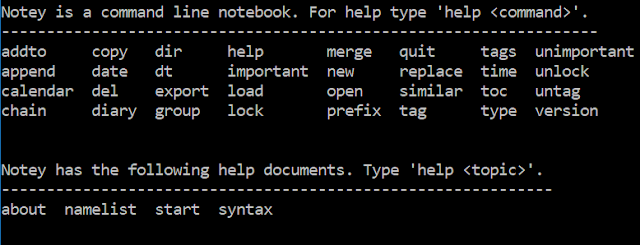
32 commands are available, but you are not expected to remember them all.

Making new pages

Notey is simply a big list of named 'pages'. The first thing you will want to do is create a new page. This is achieved with the 'open' command, for example:

> open cat
This will prompt you to create a new page called 'cat'.
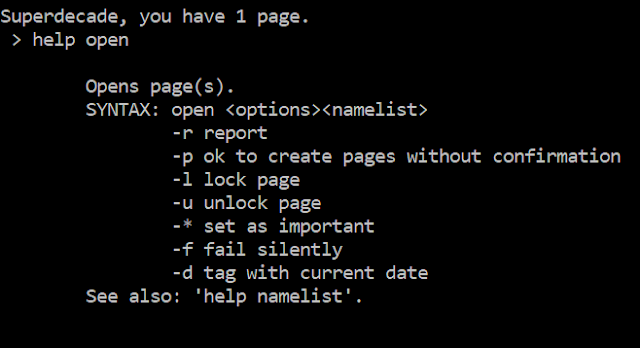
The in-built help documentation for the 'open' command.

As you can see, the 'open' command is used for creating new pages as well as opening existing pages. Most commands in Notey can take various options as parameters (shown above), for example, if you are really sure that you want to create a new page called 'cat' (and not open an existing page called 'cat'), you could type the following:
> open -p cat
Commands can take multiple options, for example:

> open -rpl*d cat

Will create a new page called 'cat', lock it so it cannot be accidentally deleted, automatically tag it with today's date and mark it as 'important'. The option -r then returns a little report showing you what Notey has been up to whilst you were waiting, as you can see in the image below.
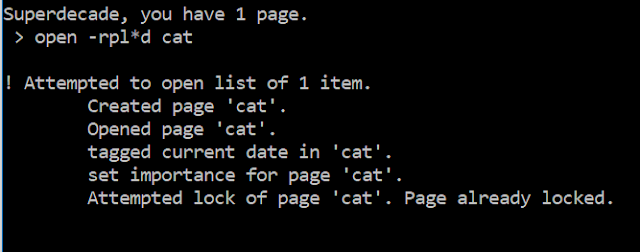
Isn't everyone's cat important?

Editing pages

When you have a page open, you will see the page name appears just before the prompt. Pages that are thus 'opened' can be edited in a number of ways. You are most likely to want to add some text to this page.

For example, you could try the following command:

> append Not a dog.

This will enter the text "Not a dog." into this page. Except - it probably won't! You will get an error. Remember how we locked the page in the previous command? Locked pages cannot be (accidentally) edited, so we have to specify that we intend to purposefully unlock our page, edit it and then lock it again.

Try:

> append -ul Not a dog.
> append -ul Like's fishes.

OK. Big wow! You will probably want to see your handiwork. To view a page on the screen, simply type:

> type
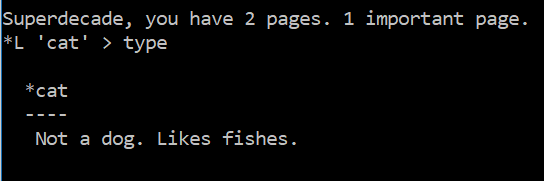
Notey has rather helpfully done a lot here. It has reminded me of my own name, as well as the number of pages I have written. It is showing me that my page 'cat' is currently open and that it is 'locked' and 'important'. When I type 'type', I get to read the note on the screen.


Currently, there are related commands for editing your pages, for example: 'prefix' and 'replace', but append will do for now.

Tags

Pages in Notey can be tagged so you can find related information easily.

Let's tag our page with a list of tags:

> tag pets,animals

This will add two tags, 'pets' and 'animals' to the current 'cat' page. We already tagged our page with the current date with the 'open -d' command earlier. Forgotten already? I don't know! Actually, it is easy to get a little confused at times when using Notey, but thankfully there are a number of ways of getting information on what you are doing.

Table of contents

You will want to see what pages you have available in your notebook. The 'toc' command brings up a table of contents. You may want additional information such as a page summary, or list of tags.

Try:

> toc -t

This will display all the pages in the book including a summary of the tags for each page.
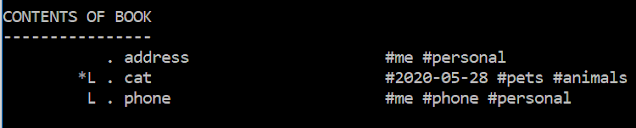
Now I will never forget my own address again.

You can also specify a search term to filter the table of contents. For example, need to see only those pages with 'cat' in the title? Try:

> toc -t cat

If you need more advanced filtering then you need to get your head around the 'group' command.

Grouping

Groups allows you to group pages based on a search term or tag name or other property. This allows you to apply commands to all the pages in the group. For example, if you need to add the text 'remember to feed' to all pages with 'cat' in the description, that have been marked as 'important' and have been tagged as '#animals', then you need to get your head around groups.

> group -t pets

Will find all of the pages with a tag '#pets' and put them into the group.

> toc -t@

Will show the table of contents for the current group.


If you search the help documents for the various commands, you can see that the '@' symbol refers to 'all pages in the group'. For example, if you want to append some text to all the pages in the group, try:

> append -@ Remember to feed.

OK - admit it! How many note-taking apps let you edit multiple pages at the same time?

This is the power of groups in Notey. There is also an 'addto' command, which allows you to manually add pages to the group, and the 'similar' command, which lets you see similar pages.

Similar pages

OK, so, you have spent your time carefully categorising your notes with sensible names and a comprehensive library of tags. Now, it is time for the 'similar ' command. It groups pages from your notebook that are 'similar' to the currently open page.

Namelists

You will frequently want to apply the same command to multiple pages at once. This is where namelists come in.

Try:

> open cat,dog,unicorn

This will prompt you to create three pages called 'cat', 'dog' and 'unicorn' respectively.

You can use the '@' symbol to refer to the current group. For example:

> del cat,unicorn,@

Will prompt you to delete the pages called 'cat', 'dog' and whatever pages are in the current group.

Other stuff, briefly...

A quick tour of some of the other features of Notey.

Your pages can be exported to XML, HTML, plain text or Treepad Lite files.

My Notey notebook as a Treepad lite file (OK, more about Treepad lite another time - spoiler alert - it is no longer a thing but that does not mean it is gone forever!)

You can use Notey as a diary. Simply type:

> diary

This creates a page with the current date for you to record all of your evil machinations from the day (or your good deeds).

You can get a calendar for any month (within reason):

> calendar 2020 06
Next month. Unless you are living in the future (which you most likely are) in which case you know more about June 2020 than I do. It can't get any worse can it? Can it?! Why are you laughing??!

Chain

Notey can accept multiple commands on one line using the 'chain' command.

Eg:

> chain open cat; tag animals; lock

In this case, Notey will diligently open the page 'cat', tag it '#animals' and then lock it. It is vital that each command is separated by a semi-colon.

Future updates

Some things that still need doing:
  • importing pages from files;
  • running scripts from a file;
  • hiding sensitive data;
  • exporting to other formats (MS-Word, anyone?)
There are, no doubt, many bugs, and a lot that could be done more efficiently. But the source code is provided for your entertainment.

Th..th..that's all folks!

Well, that's it for this introduction. I hope you can see that Notey is a powerful personal information management system. There is much more that it can do, but you will have to explore this yourself. Remember it is just for fun and not super secure so it is not a good idea to store sensitive information at this stage.

Notey is currently in an alpha release stage. You are free to download either the python source code or the Windows executable version and do what you like with it. I am sure that I will be adding more functionality soon, and I will be encouraged by anyone who finds it useful - so Tweet ME.


...or click this OneDrive link below...


If you enjoyed this post, then it shows that you have great taste, and you might like to read more of my stuff

I made a command line personal assistant in BASIC

I am not 100% serious about this application, however, just to amuse some students I have written a personal digital assistant app in BBC BASIC for Windows.

Introducing Susan - your command line personal assistant.

Susan running in Windows 10
Susan can:

  • compose email;
  • keep you up to date with the news and weather;
  • solve mathematical expressions;
  • remember your wife's birthday;
  • search The Web;
  • run macros and scripts;
  • keep time;
  • say stuff
For the full list of features see the online help, or Susan's homepage.

The current version (1.1.0.26) is available to download.  Should there be much interest in Susan, I'll add some new features (possibly alarms and reminders first).

I would appreciate helpful feedback through the social media links at the top right of this page. 

#Python Command Line Calculator


Continuing from yesterday's post on the #python cmd command line library, I have written a more complete example.  The command line calculator is a simple program for performing simple calculations in the command line using only python standard libraries.

  • Calculations are entered into the accumulator in the form <operator> <operand>.  For example, to add 3.4 to the accumulator, type "add 3.4".  
  • Supports addition, subtraction, multiplication, division, floor division, modulo, exponential power and reciprocal operations.
  • You can store any value as a variable and use the variables in calculations.  
  • Chain multiple calculations at once.


import cmd
import datetime
import textwrap

class Calc(cmd.Cmd):
    """A Command line calculator"""
    def __init__(self):
        """Constructor"""
        cmd.Cmd.__init__(self)
        cmd.Cmd.prompt = ""
        self.__acc = 0 #the accumulator
        self.__version = "1.0.1.3"
        self.__vars = {}

    def initialise(self):
        self.__makePrompt()

    def __getVersion(self):
        return self.__version

    
    def __showKeyError(self, args):
        return ("There is a problem with that variable\n'"+args+"' is not stored.")


    def __showSyntaxError(self, args):
        return ("I'm sorry old boy, there is no such command or variable '"+args+"'!")


    def __showVariableError(self, args):
        return ("Bad variable name '"+args+"'!")
    

    def __makePrompt(self):
        cmd.Cmd.prompt = "--->"+str(self.getAcc())+"\nEnter command or 'help' : "

        
    def __setAcc(self, avalue):
        """Sets the accumulator to a value"""
        self.__acc = avalue


    def getAcc(self):
        """get method for the accumulator"""
        return (self.__acc)


    def __setVariable(self, key, value):
        """Add item to dictionary"""
        try:
            self.__vars[key] = str(value)
        except NameError:
            print(self.__showVariableError(key))


    def __getVariable(self, key):
        """Returns the value associated with the key"""
        return self.__vars[key]

    def __showAllVars(self):
        for key in self.__vars:
            print ("  "+key+" = "+self.__vars[key], end=", ")
        print ("\n")
        
    def do_version(self, args):
        """Displays the calculator version number"""
        print("Version: ", self.__getVersion(), end="\n")


    def do_clear(self, args):
        """Clears all variables and sets the accumulator to zero"""
        self.__vars.clear()
        self.__setAcc(0)

    def __evaluate(self, args, b, op ):
        try:
            #Try to add the value onto the accumulator
            a = float(args)
            self.__setAcc( eval(str(b) + op +str( a ) ) )
        except ValueError:
            try:
                #Now look for a key in the dictionary
                a = float( self.__getVariable(args) )
                self.__setAcc( eval(str(b))+ op + str( a ) )
            except KeyError:
                print( self.__showKeyError(args) )
            
        
    def do_add(self, args):
        """Adds the argument to the accumulator. Example, add 5.3"""
        self.__evaluate( args, self.getAcc(), "+" )


    def do_sub(self, args):
        """Subtracts the argument from the accumulator. Example, sub 5.3"""
        self.__evaluate( args, self.getAcc(), "-" )     


    def do_divide(self, args):
        """Divides the accumulator by the argument. Example, divide 5.3"""
        self.__evaluate( args, self.getAcc(), "/" )    


    def do_multiply(self, args):
        """Multiplies the accumulator by the argument. Example, multiply 5.3"""
        self.__evaluate( args, self.getAcc(), "*" )      


    def do_div(self, args):
        """Performs floor division between the accumulator and the argument.  Example, div 3"""
        self.__evaluate( args, self.getAcc(), "//" )      


    def do_mod(self, args):
        """Performs modulo operation between the accumulator and the argument.  Example, mod 3"""
        self.__evaluate( args, self.getAcc(), "%" )      


    def do_raise(self, args):
        """Raises the value in the accumulator to the power.  Example raise 2"""
        self.__evaluate( args, self.getAcc(), "**" )


    def do_recip(self, args):
        """Find the reciprocal of the vale in the accumulator"""
        self.__setAcc( 1/self.getAcc() )

      
    def do_store(self, args):
        """Store the value in the accumulator into a named variable.  Exmaple, store x"""
        self.__setVariable(args, str(self.getAcc()) )


    def do_load(self, args):
        """Load a value into the accumulator"""
        try:
            #Try to find a value and put it in the accumulator
            a = float(args)
            self.__setAcc( a )
        except ValueError:
            try:
                #Now look for a key in the dictionary
                a = float( self.__getVariable(args) )
                self.__setAcc(  a )
            except KeyError:
                print( self.__showKeyError(args) )


    def do_time(self, args):
        """Displays the current time."""
        print( datetime.datetime.strftime((datetime.datetime.now()), '%H:%M:%S') )

      
    def do_date(self, args):
        """Displays the current date."""
        print( datetime.datetime.strftime((datetime.datetime.now()), '%Y-%m-%d') )
   

    def help_me(self):
        msg = "Enter command line calculations (e.g.  add 3.2).  Perform multiple calculations with the 'chain' command (eg chain 4; add 4; div 2).  Assign to a variable with 'store <varname> (e.g. store x).  Clear the accumulator and all variables with 'clear'."
        for x in textwrap.wrap(msg, 50):
            print(x)


    def help_about(self):
        msg = "Command Line Calculator "+self.__getVersion()+" superdecade games. http://www.superdecadegames.com or http://www.superdecade.blogspot.com"
        for x in textwrap.wrap(msg, 50):
            print(x)


    def do_chain(self, args):
        """Execute a series of commands separated y semi colons.  Example: 8; add 3; sub 5"""
        for x in args.split(";"):
            self.onecmd(x)
        
           
    def emptyline(self):
        """deals __makePromptwith empty input line"""
        #print("\nThe accumulator is...", self.getAcc())


    def default(self, args):
        """Overides the default error message"""
        try:
            #user types a number so set accumulator to that number
            a = float(args)
            self.__setAcc( a )
        except ValueError:
            try:
                #user has types a variable so set accumulator to that number
                a = float( self.__getVariable(args) )
                self.__setAcc( a )
            except KeyError:
                print( self.__showSyntaxError(args) )


    def do_show(self, args):
        """See the value of a variable.  Example show x"""
        if args == "":
            self.__showAllVars()
        else:
            try:
                #user has types a variable so set accumulator to that number
                a = float( self.__getVariable(args) )
                print("  "+args+" = "+str(a))
            except KeyError:
                print( self.__showSyntaxError(args) )

        
    def postcmd(self, stop, line):
        """Script that runs when the current command has completed"""
        self.__makePrompt() # remake prompt so it includes the accumulator value
        
if __name__ == "__main__":
    mycalc = Calc()
    mycalc.initialise()
    mycalc.cmdloop("Command Line Calculator\n")


Python learners should learn this #python first

I have recently discovered the python cmd library - a really useful library for creating command line programs in python.  I am beginning to wonder why we don't teach beginning python programmers the cmd library first.

Here is a really simple (and rather pointless) python command line program to demonstrate how to use the various features.

import cmd

class App(cmd.Cmd):
    def __init__(self):
        cmd.Cmd.__init__(self)

if __name__ == "__main__":
    myapp = App()
    myapp.cmdloop()


Here we begin by importing the cmd library (it is part of the standard library so you will have it available).  I create an App class to contain my various command line functions and create a constructor method __init__.

This program doesn't really do much at the moment.  Running it you will see a command prompt.

We have created a new command line.  The only command that is currently implemented is 'help'. Type 'help' and see what happens...

Now we will add a new command.  It would be useful to have a way of stopping our program, so we will implement a 'quit' command.

import cmd

class App(cmd.Cmd):
    def __init__(self):
        cmd.Cmd.__init__(self)

    def do_quit(self, args):
        return True
 
if __name__ == "__main__":
    myapp = App()
    myapp.cmdloop()


Adding a new command is as simple as creating a new method called do_something().  Returning True from a method will exit the cmdloop() method, so this will suffice for our quit method, for now.

Run the program and you will notice that a new command 'quit' has been added to the program documentation.


import cmd

class App(cmd.Cmd):

    def __init__(self):
        cmd.Cmd.__init__(self)

    def do_quit(self, args):

        """Exits the program."""
        return True
    
if __name__ == "__main__":
    myapp = App()
    myapp.cmdloop()


We don't like 'undocumented commands'.  Adding documentation is as easy as adding a docstring to the method.  The docstring is the triple-quoted string.

Yay!  Documented commands.  Try typing 'help quit' at the prompt.


import cmd

class App(cmd.Cmd):
    def __init__(self):
        cmd.Cmd.__init__(self)
        cmd.Cmd.prompt = "(enter command or 'help'): "

    def do_quit(self, args):
        """Exits the program."""
        return True
 
if __name__ == "__main__":
    myapp = App()
    myapp.cmdloop()


The default prompt is not very helpful.  You will probably want to change the prompt to a useful symbol or helpful message.  This is easily done by changing the value of the prompt attribute of your cmd object.

Customizing the prompt.

import cmd
import datetime

class App(cmd.Cmd):
    def __init__(self):
        cmd.Cmd.__init__(self)
        cmd.Cmd.prompt = "(enter command or 'help'): "

    def do_time(self, args):
        """Displays the current time."""
        print( datetime.datetime.strftime((datetime.datetime.now()), '%H:%M:%S') )
     
     
    def do_quit(self, args):
        """Exits the program."""
        return True
 
if __name__ == "__main__":
    myapp = App()
    myapp.cmdloop("Command Prompt")


Let's get the program to do something a little more interesting.  Here we have added a new method do_time, such that when you type 'time' you will see the current time...

...and the date....

import cmd
import datetime

class App(cmd.Cmd):
    def __init__(self):
        cmd.Cmd.__init__(self)
        cmd.Cmd.prompt = "(enter command or 'help'): "

    def do_time(self, args):
        """Displays the current time."""
        print( datetime.datetime.strftime((datetime.datetime.now()), '%H:%M:%S') )
     
    def do_date(self, args):
        """Displays the current date."""
        print( datetime.datetime.strftime((datetime.datetime.now()), '%Y-%m-%d') )
   
    def do_quit(self, args):
        """Exits the program."""
        return True
 
if __name__ == "__main__":
    myapp = App()
    myapp.cmdloop("Command Prompt")

Notice that we can pass a banner or a greeting message to the program by passing a string as parameter to the cmdloop() method?

Our app now does something useful!

Notice that each of the user-defined methods has an argument called 'args'.  Our one-word commands can actually take other commands as parameters and then do something useful with them.  For example, here we create a new command 'path'...

import cmd
import datetime
import os

class App(cmd.Cmd):
    def __init__(self):
        cmd.Cmd.__init__(self)
        cmd.Cmd.prompt = "(enter command or 'help'): "

    def do_path(self, args):
        """Lists the directory eg c:\\users"""
        try:
            for filename in os.listdir(args):
                print(filename)
        except (FileNotFoundError):
            print ("Cannot find files for '", args, "'")
         
    def do_time(self, args):
        """Displays the current time."""
        print( datetime.datetime.strftime((datetime.datetime.now()), '%H:%M:%S') )
     
    def do_date(self, args):
        """Displays the current date."""
        print( datetime.datetime.strftime((datetime.datetime.now()), '%Y-%m-%d') )
   
    def do_quit(self, args):
        """Exits the program."""
        return True
 
if __name__ == "__main__":
    myapp = App()
    myapp.cmdloop("Command Prompt")


An example of passing a parameter to one of our user-defined methods.  Here we obtain a directory listing and display it on the screen.

Notice that it is necessary to add exception handing in the do_path() method.  This is because it is highly likely that the user will type something meaningless (such as a non-existent filepath) which might otherwise crash the program.

The following method shows how we can use other commands as though the user had typed them.  For example, it might be useful to have a users command, which works in the same way as though the user had typed path c:\\users


    def do_users(self, args):
        """Displays a list of users on this system"""
        myapp.onecmd("path c:\\users")

    
That's it for now.  We've looked at how we can implement simple but powerful command line interfaces to our python programs.  We've seen how to add documentation and pass parameters to our commands.  We have also seen how we can get python to run our own commands as though the user had typed them.

Hopefully you agree that the cmd library provides a whole load of useful and powerful features for python beginners, and it is easy too.

Read more about the cmd library here.

Label

World Karma Game