Showing posts with label BBC Master. Show all posts

A trip to RetroClinic

I recently took my BBC Master microcomputer to RetroClinic for a bit of tender loving care. Mark did an excellent job of fitting a new cherry keyboard as the original keyboard had developed a fault. I also walked away with a new Phillips monitor which has much-improved picture quality than the old one.

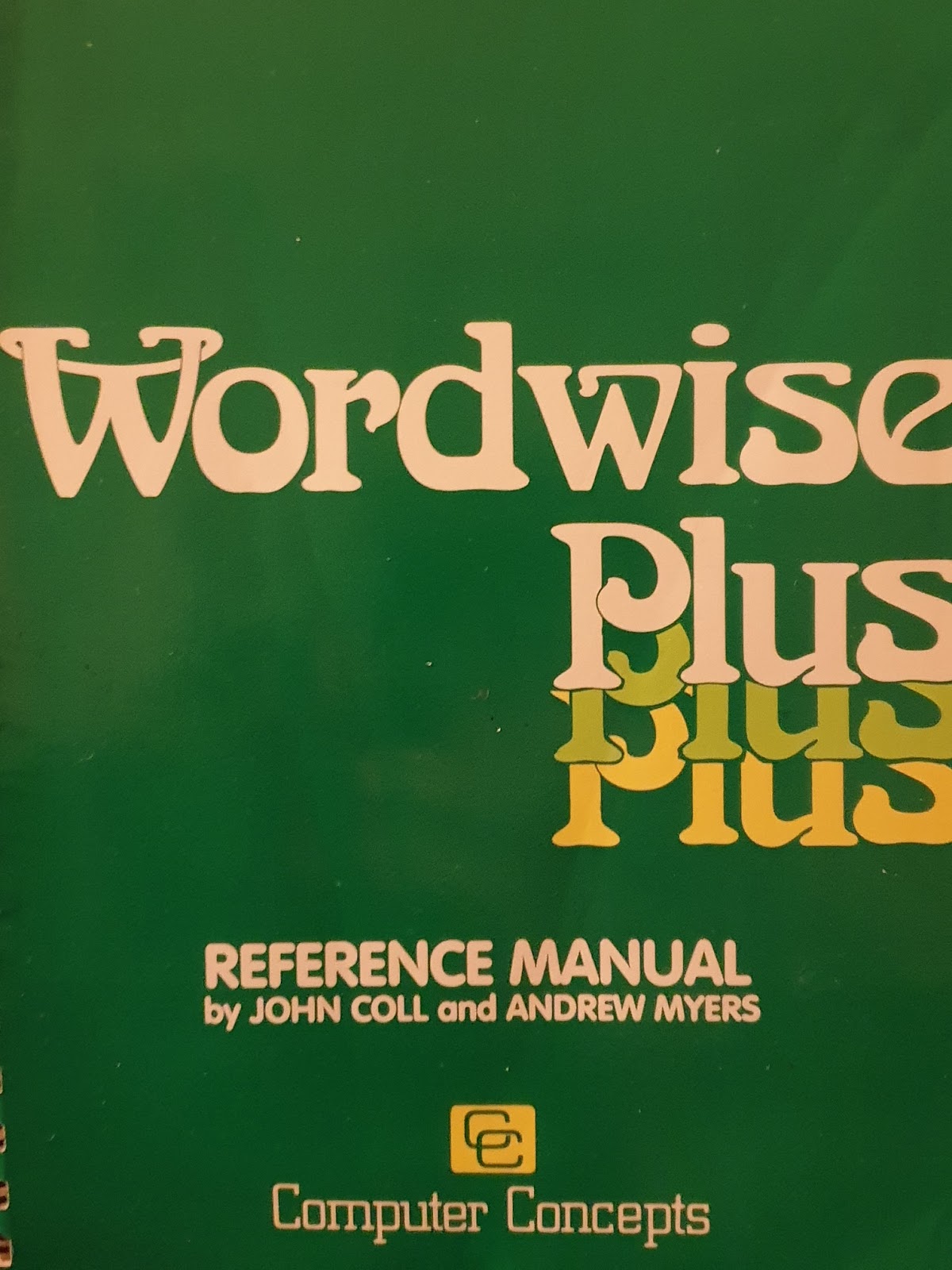
Mark also sold me a copy of Wordwise-Plus. This is the word-processor I used when I was grasshopper high to a knee. In fact, I remember writing both GCSE and A-level coursework on this trusty word-processor and it even followed me to university (although it did not survive the experience).

Cherry keyboard for the BBC Master (thanks to Mark from RetroClinic). Looks like a 'beeb' keyboard, feels like a modern cherry keyboard. These keys actually feel soft. The original 'beeb' keyboards were designed to be school-level indestructible as they were intended to survive half a term with those monsters in 3B Mathematics on a Friday afternoon.

Wordwise-Plus comes from a time called '1984', when, as well as all the population being victims of perpetual war, omnipresent government surveillance and propaganda, word-processors were non-WYSIWYG. This means that in order to control the layout of your text you had to enter control codes. This was way more fun than modern word-processors with their boring icons, mouse pointer-aiming, perpetual war, omnipresent government surveillance and propaganda.

Wordwise-Plus menu in glorious MODE 7 running on original hardware and Phillips monitor.
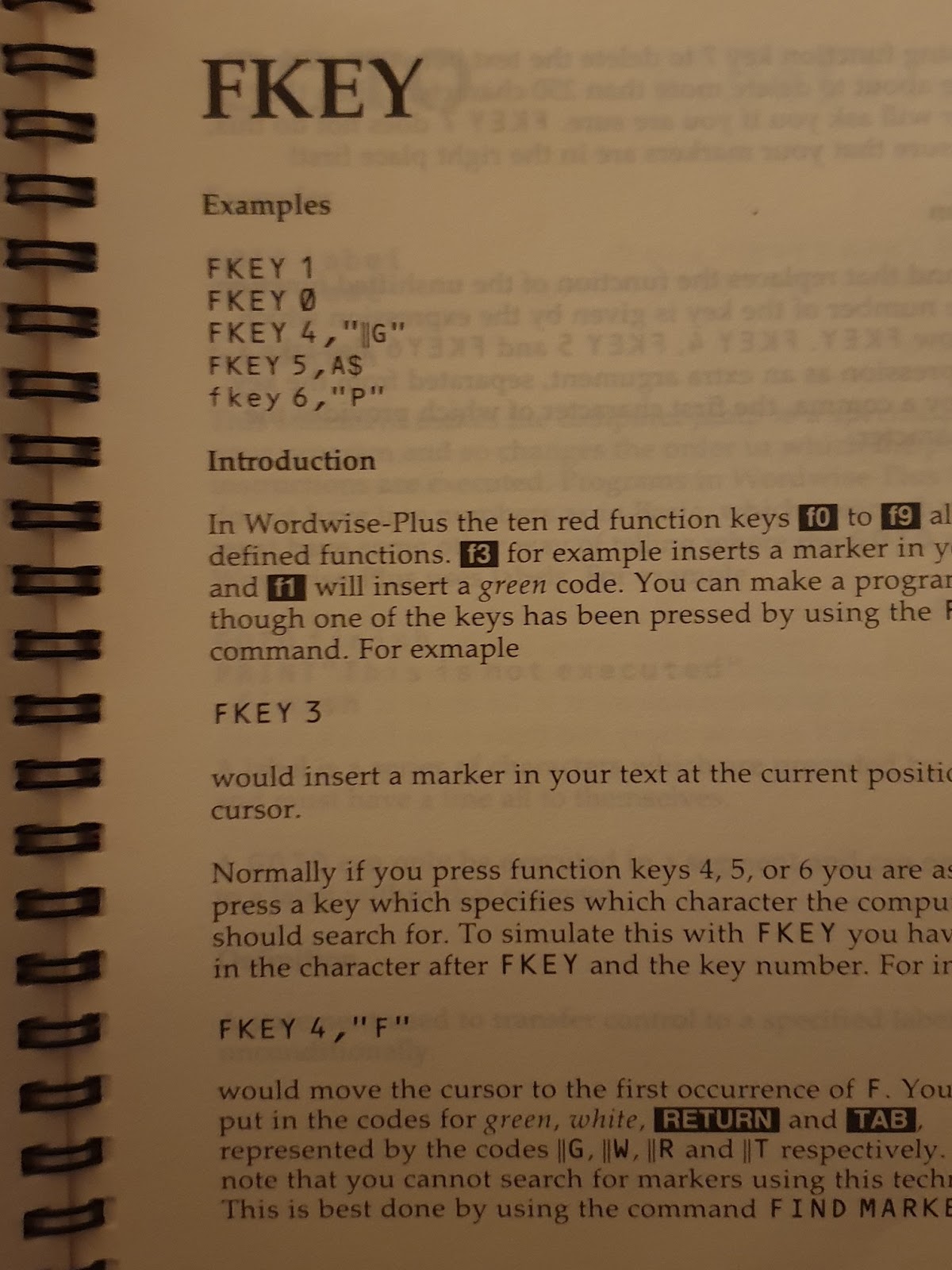
Wordwise also had a built-in macro scripting language. When I was a youngster living on Airstrip One, I actually coded loads of scripts to perform various jobs on my school work, such as applying headers and footers, automatically creating cover pages and numbers, etc. Youngsters today don't know they are born!

One page from the extensive scripting language manual which is now my bedtime reading for the next week, even though page one warns you that this manual doesn't make good bedtime reading.
My blog: full of awesome goodness and other relics of the Cold War.

I have absolutely no doubt that you will be finding some Wordwise-plus code floating around on these pages sometime soon. I also intend to write a post about how tremendous those red BBC micro function keys are at some point (hint, they are really tremendous).

Mark performing surgery on the Beeb. That's one Speech ROM going in as well as a battery pack replacement.
Th...th..th..that's all folks!


If you enjoyed this post, then you might want to visit your doctor and explain the symptoms to him or her. If you are sticking around for a bit anyway, then you might want to read about some Raspberry Pi posts. If you hate this blog, then you will really hate this post, not to mention this one.

Castle Defender is a brilliant new game for the BBC micro

Every now and then a new game is developed for vintage computers. Built by computing enthusiasts these games are often better than the original offerings from the time that the machines were first popular, or include titles and ideas that come from the modern age.

Castle Defender is the BBC micro's first ever tower defence game, and it is really very good. Programmed by Chris Bradburne with graphics by John Blythe, this game is superbly well written and designed. The graphics are stunning and the game play is addictive. I have been playing all morning, with admittedly, a pathetic high score of only 40% to show for my efforts.

A hoard of orcs and goblins storm my castle defences on the BeebEm emulator.
The aim of Castle Defender is to protect your castle from the waves of computer controlled 'nasties'. You build towers at strategic points along the way to shoot your enemies to death. There are three different types of weapons which can be upgraded as you earn more gold. Indeed, upgrading your weapons is the only way you will succeed at this game.

There is an initial steep learning curve in Castle Defender. At first the cursor key controls seem a little counter-intuitive, and you will possibly long for a touch screen. The best approach is to only use the left and right cursor keys to navigate the battle field. The second lesson you will need to learn is how to read the display at the bottom of the screen. Some enemies have shields which make them almost impossible to kill unless you have weapons that can deal with shields. Choosing the appropriate mix of weapons is essential to surviving each wave of nasties in Castle Defender.

Snakes! I hate snakes, Jock! I hate 'em! Come on! Show a little backbone, will ya!
There are four levels of superb high-resolution MODE 1 graphics, with each level getting progressively more 'evil'. You can skip levels by pressing the corresponding key 2,3 or 4 at the start of the game, although if you do the game wont track your high score. The animation is very smooth and the enemies make a satisfying 'pop' when they die.

It really is a joy to see developers creating new games for vintage machines, particularly when the results are such superb quality releases. One geek experience point is awarded each to Chris Bradburne and John Blythe.

You can download a copy of this game for your BBC micro or BBC master computer, or run it on your PC in an emulator such as BeebEm.

Zap that nasty! The loading screen of Castle Defender.
More modern games for vintage computers are available on the Homebrew Heroes Facebook page.

Well that's all from me today. I'm off to squish some 8-bit orcs...


Can you use a BBC Micro as your main computer?

Well, the short answer is no, (but I have been trying)...

For a computer to be of any use, I figure that it must be able to do the following well:

  • Connect to the Internet and have a fast, secure browser.
  • Provide applications for work flow.
  • Provide applications for playing media files.
We'll look at these in turn, but first some information about the BBC Microcomputer.

A Graphical User Interface for the Beeb

The BBC micro, (or 'Beeb') was an 8-bit microcomputer commissioned by the BBC and built by Acorn in 1981. It was highly popular in education in the UK and survives today in the hands of enthusiasts such as myself. If you need to get your beeb 'fix' then there are a number of emulators available, including browser-based, and desktop (I recommend BeebEm). There is, however, nothing like running a vintage machine for the full experience. I recommend Retroclinic for all your BBC computer needs, including the datacentre (more about that later).

The Internet

While Acorn produced Econet, their own version of LAN connectivity for the BBC microcomputer, in the modern world this is not going to get you very far. It is possible to connect a modem to a BBC micro computer, however you must keep in mind that this machine was build before the World Wide Web was invented. You will be very disappointed if you need to upload your duck faces to Instagram on a beeb. You will find that you must keep your Twitter-rants to yourself and it will be virtually impossible to see what everyone is having for dinner on Facebook.

As a main computer, the BBC micro falls at the first hurdle. This was a pre-Internet machine and sadly, you will need a modern computer to experience the modern Internet.

That should be enough to kill anyone's dreams of using the BBC micro as a main computer, however there are two other critical points of failure:

Work flow

Whatever your job, business or hobby, you will likely need to run some Office software, or other such desktop publishing or productivity tools. If these are mission-critical to you, then switching to a 35-year old computer is not an option. The Beeb doesn't fall flat completely, however. Most BBC computers were packing work-flow software, and although they seem primitive now, you can get stuff done. My BBC Master computer has a word processor, spreadsheet and text editor built into ROM, and thanks to the Retroclinic datacentre it is possible to transfer files from the beeb onto my Windows 10 PC.

That being said, and despite having some, albeit ancient productivity tools, the beeb cannot replace my PC as a productivity machine (however I will talk about what it CAN do later).

Media center

I am currently typing away on a modern laptop, and streaming music on a chromebook which is plugged into my amplifier. I have a library of music, movies and photographs stretching back nearly two decades stored on a network drive, and if any computer is going to be my main computer, then it will need to handle my entertainment needs. For a while, I used a Raspberry Pi as my main music jukebox, although I now use Microsoft's Groove app. Whatever your media needs, your BBC microcomputer is not going to do it. 8 bit machines simply do not have the codecs required to play audio and other media files. Although digital cameras were available for the BBC, they are nothing compared to their modern counterparts.

So, it seems like the BBC computer cannot be used as a main computer. 

If, however, you accept these limitations, then the beeb still has a lot going for it. In the rest of this post I shall talk about some of the cool things my beeb does for me.

My BBC

My computer is a Master series with 128K RAM and a second processor. The caps were replace about a year ago, so there is no danger of the power supply failing anytime soon. The battery for the CMOS RAM is also in good condition having been replace fairly recently. I have a dual-drive disk drive, however the main way of storing files is using the Retroclinic datacentre. This little device provides four virtual RAM disks, a small non-volatile 64K RAM disk and it also has 2GB compact-flash cards which provide four 500MB hard disk drives. There is a USB flash drive sticking out of the front storing literally hundreds of disk images which can be transferred into RAM in just a few seconds.

My microcomputer has 'pride of place' on my desk and supports a 32 inch monitor. When I first got it I promised myself that I would use it as an 'everyday' machine in order to justify its position on the desk.

I often use the BBC as a notebook. The EDIT program built into ROM is always available, and I use this to write notes to myself as well as my diary and other documents. I didn't go as far as writing this blog post on it, however I just realised that I could have done, and now I wish I had. I also use the spreadsheet program to help manage my accounts, as well as other diverse tasks including calculating the most cost effective pizza as well as helping calculate options in online games. The Beeb performs all of these tasks admirably and there really is no need for a modern computer. I am waiting for the time a colleague requests some trivial or not critical information from me, expecting an email, but instead, as I am a mischievous soul I will provide them with a text file on a portable USB disk drive. Mwah ha ha ha HAAAA!

Although the BBC was not well-know for it's games, this computer did have an extensive library of titles available for it, and the beeb was no slouch when it came to graphics and sound, for it's time. Most games are available to download online from such sites as Stairway to Hell. The best experience can be had from games with a focus on gameplay rather than graphics. Classic games such as chess, backgammon, connect-four, patience, solitaire, UNO, Yahtzee, NIM, Mastermind, draughts, reversi and cribbage all work very well on a BBC. There really is no need for a modern PC to play these games as the beeb will be a very challenging opponent.

Being beaten at Minesweeper on the Beeb (again).
Armies of programmers have over the years written countless applications for the beeb. I often trawl through the disk images that came with magazines in the eighties to find apps that are still useful today.

Here is an app for finding the next few phases of the moon.

This app calculates the dates of future eclipses and even shows a graphic of what the Earth's shadow will look like over the moon.
Okay, it's not quite Google Earth...

The beeb has a (very good) version of BASIC held in ROM. For this reason it is very easy to write your applications for the beeb. You can read about my early attempts here. I currently have applications for telling me the time and date, as well as useful stopwatches, countdowns and alarms (yes, I use it to help me cook my dinner). I have a perpetual calendar application and a calculator. All of which get regular use. I am currently working on a dictionary program.

My very useful calendar/clock app.
So, in summary, can you use a BBC microcomputer as your main computer? No, but it does make a very handy, and tremendously fun second computer.

If you are still awake and for some reason you liked this post then you might like to read about my other BBC micro posts, or even my adventures with the Raspberry Pi. Perhaps you just want to know how many floppy disks would be needed to store all of Google Maps?

Either way, I hope you liked this post. Please come back soon for more geeky stuff.

Stuff I use my microcomputer for #01 Chess

Avid readers of this blog will be well aware that I am a retro computer hobbyist, with my favourite machines being those produced by Acorn in the 1980s. You see, the 1980s were not only the days of Rubik's Cube, Ghostbusters, Tiffany, dreadful fashion and Margret Thatcher (oh, I've made myself sad) - for the 80s was also the time of the BBC microcomputer (yay, happy again!).

So, I've decided to start a series of posts about what I still use my BBC microcomputer for. Or, at the very least, a series of things that I would like to do more of.

Today:

Acornsoft Chess

Acornsoft Chess running on vintage hardware
Acornsoft Chess is a pretty decent chess program, all things considered. It features all legal chess moves including en passant and minor promotions. Moves are entered using pure coordinates, as shown in the image above. The software also has and 'edit' mode to explore different game positions and solve 'mate in two' type puzzles. Most importantly for the game's longevity is a 'save' feature, because leaving a microcomputer switched on permanently is not really an option.

There are ten levels of play, and as I consider myself to be of fairly average ability I have recently moved up to level 5, and as you can see from the image I am holding my own in this epic three-hour battle.

Acornsoft chess is not as speedy as a modern implementation, but this matters not because, for one thing, what do you expect from a 6502 processor with 32K RAM? The other thing is it is about as fast, if not better than an average game of online postal chess.

Well, that's it for today on pre-Internet Chess. I also play on Chess Time, so any readers who want to challenge me, my user name is superdecade and my current chess rating is 'very poor'. Please, if you do send me a challenge, keep the move limit four days or longer.

Well, must dash, it's my move.

Spider webs by natural selection

I recently discovered this awesome BBC BASIC program for simulating spider webs through natural selection. It was written by Matthew Tizard for the BBC Acorn User magazine October 1992.

Natural selection left running on a BBC Master 128 for a couple of days.

The program generates nine 'spider webs'. The fittest spider web is the web that catches the most 'flies'.  This web is then chosen to go into the next generation.

Natural selection running on BeebEm with 6502 Second processor showing nine generations with 'flies' turned off.


I found that the program is best run with your second processor turned on (for hopefully obvious reasons). In fact I found that you get approximately three times improvement in speed, with one generation taking about twenty seconds to generate, draw and test on screen.

You can easily switch on your second processor using BeebEm as shown above.

Another version of the program allows you to control evolution by choosing which web you wish to survive into the next generation. In this way you can select for characteristics that you like, not necessarily the ones that will catch the most flies.

Assuming that the program is in the public domain I have put the files onto a BBC disk image which you can download from the link below.
BBC Disk Image

You will need to load the disk image into your emulator program, or directly into your microcomputer using the datacenter, MMC unit or otherwise copy it onto a floppy disk.

There is a readme file which can be loaded with *type T.readme

The programs can be executed with CHAIN "ArtAuto" OR CHAIN "ArtLife".  Press <ESCAPE> and type LIST to see the program code.


+1 Geek Experience point for Matthew Tizard

#geek #bbcmicro #naturalselection #spiderwebs

Perpetual Calendar app updated to include Timely

I have updated my perpetual calendar app for the BBC Master Computer.  It now includes the "Timely" app which I discussed in a previous post.

DOWNLOAD the SSD file for your BBC Master or Emulator.

The perpetual calendar (running in the emulator) showing a view of the 19th June 2019.

The full suite of programs now offers the following features:


  • A perpetual calendar which is good for the next hundred years or more, including dates of Easter, up to 365 custom recurring events or one-off calendar events.
  • A clock (available in both calendar, and "Timely" modes).
  • A timer (counts upwards in seconds).
  • A countdown (counts down in seconds).
  • Up to 6 alarms (which can be saved and reused).
  • A CMOS clock reset utility (thanks to Beebug magazine).
  • Comprehensive documentation and a help system (does not work with second processor).

The "Timely" app running on vintage BBC Master Computer, showing a 20 minute countdown.
Machine code help routine.  Bring up a list of help topics with *H, or find a specific help topic with *H <topic> Unfortunately this feature will not work with the 6502 Co-processor.

If you are still awake then you might want to read other BBC Computer related posts, or just some random programming stuff.

Grrrrrr...!
#BBCComputer #BBCBASIC #Programming #perpetualcalendar #time #timer #countdown #calendar #teletext

Perpetual calendar version 1.4

I have updated my BBC Master calendar program.

Calendar running in the BeebEm emulator

The new features are:


  • 'Green letter day' - these are custom dates that you can set so they appear as green days in the calendar.  The dates are simply stored in a text file and you can add a single string of 38 characters to describe the event/day, for example "Auntie Maggie's birthday".  Dates can be set as either one-off events, or annual events.
  • The calendar automatically updates when the date changes in real time.  For example, if you are watching the calendar on the 30th November, late at night, the calendar will switch to 1st December at midnight.
  • Clock has been added. A simple depiction of the current time, which updates every five seconds.
  • Months in the future are depicted in green, and the past is depicted as red.
  • I have included an example data file (D.data) which includes some 'green letter days'.


In the future I may add the ability to add multiple events for each day.  I would have to change the underlying data structure so that events are stored as a linked-list, but I would also have to think about how the events all fit on the screen.

You can download the single-sided disc image for your BBC Master datacentre or for your emulator.

  • Hold <SHIFT> and press <BREAK> to load.  
  • To load the documentation: CH."docs".
  • The dates data file is D.data and should be edited in your text editor *EDIT D.data


Perpetual calendar

Today I wrote a Perpetual Calendar program for my BBC Master 128.

The calendar calculates the dates of Easter, as well as indicating the date of Christmas and Halloween.  Obviously, calculating the date of Easter was much harder(!)  I have managed to get somewhere with calculating the full moon phase as well, but I didn't quite finish this bit.

Perpetual calendar running in the BeebEm emulator, showing the date of Easter for 2017.  By the way, the date of Easter 2018 is 1st of April - NO JOKE!
I am grateful for the following contributions.  The basic calendar function was first published in BBC Acorn User magazine in July 1987, written by Paul Skirrow, and was published in their 'Hints and Tips' section.  I have modified it so that the calendar displays interesting days in colour. It also picks up the current date from the CMOS RAM, so this program will only run on a BBC Master 128, or otherwise a BBC computer fitted with an internal clock and battery.  You can emulate this in BeebEm, but it might struggle to pick up the correct date without some configuration.

The awesome teletext font first appeared in BBC Acorn User magazine in November 1990 and was written by Martin Osborne.

The current functionality allows you to skip forwards or backwards in time in steps of months or years using the cursor keys, or you can go to a specific month by pressing f0 (f10 in the emulator).

In future versions I would like to be able to enter 'red letter' days - ie let the user enter appointments, either recurring appointments like birthdays, or one-shot reminders for the dentist etc.  As it stands the program is only a rebuild of the existing perpetual calendar which I wrote about here.

You can download the SSD single-sided disc image here.  This will run in the BeebEm emulator, but you will get much better experience running it on vintage hardware using the DataCentre add on.

A sample of the help file supplied on the disc.

RetroClinic Datacentre for BBC Micro

The post was going to be called: 'You need to hear about my 1MB RAM disk', or 'Not even the US military have this hardware in their nuclear defence system'.

Yesterday the datacentre arrived for my BBC Master 128.

The datacentre is available from retroclinic.com and is a modern hardware upgrade for your vintage BBC microcomputer.  Setting-up was easy as I chose the 'external' datacentre option which is virtually plug-and-play (although I did need to install the RFS ROM chip).

BBC Master running TimeTrek.  The Datacentre is the 3D-printed box with the red light sitting on top of the disk drive.

Datacentre provides you with a RAM filing system.  This means that you get four virtual floppy disks available to use straight away.  The computer treats these as it would any floppy disk with the advantage of being totally silent and noticeably faster.

You also get one Non-volatile 200K RAM disk.  This works in much the same way as the other four with the added advantage of not losing its contents when the power is switched off.  I am going to use this for commonly-used apps. You can also configure the master to boot into this disk which is very handy.

Probably the most compelling reason to upgrade your beeb with the datacentre is the fact that you can plug a USB flash drive into the USB 2 port.  Your computer sees this as another (sixth) disk drive which you can, if you like, use to store programs and files as with the other disks.  More compelling is that you can transfer any file from your PC onto the USB disk and have your BBC computer read these files.  Even more so is that you can dump BBC disk images - both single-sided and double-sided disks.  I have a 4GB flash disk containing over 600 disk images (and it is only 1% full).  I am reliable informed that people have plugged up to 2TB of solid state storage into their computer.  Enough room for every line of code every written for the beeb.

Once you have a USB drive full of disk images, you can transfer them onto either a floppy disk to run on the computer, or simply copy the image onto one of the four volatile RAM disks.  I spent several hours yesterday reliving the BeeBug magazine disks. You can, of course, run these disk images in an emulator on your PC, but there is nothing like running old software on vintage hardware (and a 32 inch screen).

Copying from a disk image to the RAM filing system is a process that takes one OS command *import -02 <imagefilename> and takes about ten seconds to complete for a double-sided disk.

It is possible to export the contents of a RAM disk back to a disk image for the purposes of sharing your disks or keeping a back-up in the cloud.  In fact the process is so convenient that you play loose and easy with your disks.  No longer are you confined to careful archiving of physical disks; ensuring that the most data is packed onto your precious floppy disk.

Perpetual Calendar from BeeBug by P Brown.  Yay! It doesn't think that it is 1916.
The device also has a USB 'slave' port for direct communication with your PC.  I haven't had time to play with this much yet as I was too busy looking through old disk images.  The device is a fully functional USB 2.0 specification host, and as such, you can use virtually any USB device in it you like, including keyboards, mice, joysticks, etc, but that's a post for a different time.


It is possible to accidentally corrupt your nonvolatile RAM disk, so regular backups to the USB drive are strongly advised.  I managed to do this (with resulting data loss) but fortunately the system comes with a utility to restore the disk.

If you are thinking about purchasing a BBC microcomputer, then the Retroclinic datacentre is an absolute must-have addition, so contact Mark now.

#bbcmicro #bbcmaster #retroclinc #bbcbasic #computers #vintage #floppydisk #beebem

Playing audio through Raspberry Pi

My Raspberry Pi and my BBC Master both share a 32 inch TV screen.  The problem is that I wish to continue using my Pi as a media player whilst simultaneously working with the BBC microcomputer (which doesn't play media).  In its default setting the Raspberry Pi sends audio through the HDMI to the TV and so all is very quiet when I switch to the BBC computer on SCART.

The Pi has an audio output however nothing happens when you plug an audio jack in.

A little Linux is required:


    lsmod | grep snd_bcm2835


Followed by:

    amixer cset numid=3 1


(To return to the default settings change the final '1' to '2'.)


I can now use the Pi as a media player, whilst simultaneously using my BBC computer as a productivity machine.  My music media files are stored on an external hard drive on my home network.  Altogether I am a happy nerd.

I cannot, however, force the audio through the headphones audio jack when using RISCOS on the Raspberry Pi.  I have tried changing the config.txt file by following online instructions but so far have had no luck.  If anyone knows how to do this then please get in touch.


My BBC Master 128 projects part 04

You will have been following my BBC Master computer projects series religiously.

I am trying to write some apps to turn my 30-year-old BBC microcomputer into an everyday productivity machine.  Sure, it can't handle multitasking and there is no network connection, but it is still an incredibly sophisticated machine, relatively speaking.

Today I wrote the start of the time app.  It is named 'Timely' and features various timing functions:

  • clock
  • timer
  • countdown
  • alarms
All in glorious teletext graphics.

The BBC Master has a battery-backed CMOS RAM clock, something my model 'B' computer lacked. This is an incredibly useful thing as it means that the clock stays accurate even when the machine is switched off. This might not seem that impressive when compared to modern machines, however it does make this thirty-year-old brute something of a useful machine.

Timely clock showing current time, date and a friendly message.
The timer function counts up in seconds. You can flip to the timer display by pressing button '2' and reset the timer back to 0000:00:00 by pressing SHIFT+'2'. You can switch back to the clock display by pressing '1' without affecting the timer.

The Timely timer clock 31 seconds after launching the app.
The count-down function works like the (count-up) timer, except that it is access used button '3' and reset using SHIFT-3.  You can specify the duration of the countdown from anywhere from 1 second to 1000 hours (numbers larger than this causes an overflow error, which although I think I can solve, it is unlikely that I will want to set count downs for times accurate to a second over a duration longer than 41 days!).

Setting a Timely countdown.  The countdown will generate an alert when it has finished, regardless of which mode you are currently in.
I have implemented five different user-programmed alarms.  Alarms can be set for any minute of any hour throughout the thrird Millenium.  Alarms generate an alert when they complete along with a custom message.  The difference between 'alarms' and 'countdowns' is that the alarms are saved on disk between uses of the clock.  The only problem is, of course, that the alarm will only sound if the app is actually running at the time!

Setting an alarm.
What's next?

I would like to implement:
  • hourly chimes;
  • calendar functions;
  • summary of items that are 'due' from the 'Listy' app;
  • other time/date functions, eg date of next Easter, or number of days until a due date; moon phase, position of Halley's comet, etc etc.


Well, that's it for now. You might want to roll your eyes and scroll down to this image of my floppy disk collection.

For computing history fans, these are double-sided, double-density 5 and a quarter inch disks.

The BBC disk filing system allows for up to 31 files, or about 200KiB of storage, whichever happens first.
Still scrolling down?
You might like to read about my chatbot project, or my English dictionary project, or just want to play an adventure game.

My BBC Master 128 projects part 03

I have been writing software for my refurbished BBC Master 128KiB microcomputer. The aim is to convert it from a retro gaming jukebox to an everyday productivity machine.

In previous posts I discussed my list and reminders app - Listy.

Today I finished the calculator app.  Mathematical expressions can be entered and calculated at the command line.  Values can be stored in 26 variables 'a' through 'z' and the previous result from the accumulator can be used in an expression by substituting the '@' symbol as a variable. The values of all variables including the accumulator are automatically stored on disk between calculations so they are always available the next time the system runs.

All in glorious teletext graphics.


The welcome screen.


I am rather pleased with the result, although there is some work to do regarding the error reporting as I have only implemented one error message for the case of the accumulator overflow.

Also, it would be nice if I could store functions as well as the value of an expression in a variable.

My current project is a general time-keeping app.  I want a clock, timer, countdown, reminder and alarm system.  So far I only have the clock implemented.

This photo is a shot of the clock app running on my BBC Master 128. Those digits are about 10 cm tall on the display.
In order to get some really big text I have modified some code I found in The Century Computer Programming Guide for the BBC Micro, an excellent guide to programming for the BBC Computer systems, by Professor Peter Morse and Brian Hancock, with code from P.Dilley for the large 64x64 pixel characters.


An excellent guide to programming the vintage BBC micro computer.

Are you looking at ME?
What's next?

More nerdy posts coming soon.

Still awake?  You might like to play an awesome adventure game, or read about my Raspberry Pi data-logging adventures.

My BBC Master 128 projects part 02

So, recently I bought a vintage BBC Master series microcomputer and set myself the task of turning it into a productivity machine.

My first app - Listy - is a note-taking and reminders app.  Although there are a few bugs that I still need to iron out, this app is almost complete.  Listy lets me add tagged notes with reminder dates.

All in glorious teletext graphics.


Most of the functions are accessible through one of the special symbols on the computer keyboard. Operating System commands are also accepted.  Oh, and yes, I am aware that the date is incorrectly set in the CMOS.

Here is an example of a note "Electricity" which will remind me to check my meters on the current due date.  I only wish that the CMOS calendar was not set incorrectly.

My latest project is a command line calculator.

It allows me to enter a mathematical expression and evaluate it.

Here we see the value 47 in the accumulator.  The previous expression resulted in an error.

The app will allow me to store values in up to 26 variables (a through z), which will be stored on disk for next time the program runs along with the value in the accumulator.

Variables can, of course, be used in the expressions.

It would be possible to set variables equal to expressions, such as y = f(x) so that y would change as x changes, however I have not implemented this in the first iteration in order to avoid dastardly circular references from melting my 'beeb'.

Well that's it for now.

I'll be back with more BBC microcomputer adventures soon; hopefully after I've fixed the CMOS date problem.

Still with us? Read about my other adventures with 25-year-old operating systems

My BBC Master 128 projects part 01

I have owned a refurbished BBC Master 128 computer for just over one week.  In order to justify its position as pride of place on my desk, I am determined to write some apps for it that I will be able to use every day.  Thus turning this vintage games machine into a productivity machine.

The first program is a note-taking app called 'Listy'.

Listy allows me to add notes of up to 256 characters, sorted alphabetically.  The notes can be searched by content and 'tagged'.  Notes are automatically saved to disk.

Listy displays all its lists in glorious teletext graphics.

An early version of Listy showing the help screen, banner and command line running on vintage hardware and captured on my Lumia 950.
Source code showing the insertion sort algorithm. This puts new records into the correct place alphabetically.

Continued code for the insertion sort.

Further routines used by the sort algorithm, also showing the code for the blue banner at the top of the screen.
Algorithm for finding a record by name using binary search.  Binary search is a VERY fast algorithm for finding a single record typically requiring less than eight checks before a record is found (or not).

Algorithm for displaying word-wrapped text on the screen.

Current Progress

I am currently working on Listy 2.1 which has been modified to allow for shorter commands.

Records are created/modified using the command: +<name>.

Records are found by simply typing their name <name>.

A full readout of all records is achieved using the command: @.

All records displayed alphabetically is achieved using the command @keys.

Still to do

Deleting records using the command: -<name>.

Searching for records by content: ?<search term>, or by tag #<search term>

Future work

I want Listy to be able to sort records by 'date created' and by 'due date'.  This will require minor modification to the insertion sort algorithms.  I also want Listy to display records that are 'due today' when the application first loads.

Currently Listy saves all lists to a single file on the DFS floppy disk. It would be useful to be able to specify a filename to allow for multiple lists.

Well that's all for now.  If you are still awake then you might like to read my other BBC Micro posts, or just some random Programming posts.

Label

World Karma Game