Showing posts with label Coding in School. Show all posts

Robot arms with FUZE

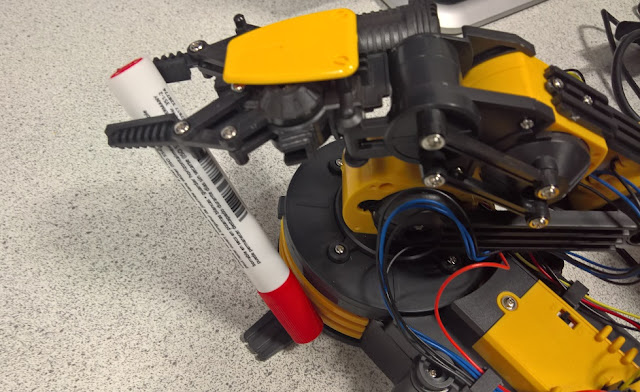
I recently bought a couple of Raspberry Pi FUZE computers with Robot arm kit.

FUZE powered Raspberry Pi with Robot Arm kit available on Amazon right now.

Check it out on Amazon: FUZE powered by Raspberry Pi (RPi V2) - FUZE-T2-R Teach Kids to Code Unit English Keyboard with Printed Project Cards & Robot Arm Kit - Black/Red

Thanks very much to Nathan and Sam for assembling the two arms.

The FUZE computer is very similar in feel to the old BBC Microcomputer, but it is a Raspberry Pi under the hood.  It does all the usual Raspberry Pi things with the addition of FUZE BASIC pre-installed: a dialect of BASIC that allows you to program the robot arms.  The feel of the user guide is very similar to the old BBC Microcomputer user manual.

The robot arms have five motors that can be activated individually.  These motors control the rotation of the base, the shoulder joints, elbow, the wrist and the gripper.  You can program it to pick up objects and move them around.  One project I intend to do is to use one of my robots as an automatic air freshener.  Every few hours the gripper will squeeze a can of freshener into the room.

Code to control the robot arm

When you first get your robot set up you will want to start to control it.  The code that comes with the FUZE BASIC instruction book is rather limited.  I wanted finer control over the start and stop of the motors as well as the ability to control several of the machine's motors at once.

Presented here is my first attempt at some control code for the robot should it be of use to anyone.

You use the cursor keys to control the body and shoulder; Q/A/W/S for the wrist and elbow; Z/X for the gripper; ENTER to toggle the light, and SPACE for 'emergency stop' (you will need it!).  Type the program into the FUZE BASIC editor, or copy from this page and save it as 'robot.fuze'.  If in doubt contact me and I'll send you the file for your pi.

REM version 1.0.0.3
PROC resetArm
PROC displayInstructions


leftBodyOn = FALSE
rightBodyOn = FALSE
upShoulderOn = FALSE
downShoulderOn = FALSE
upElbowOn = FALSE
downElbowOn = FALSE
upWristOn = FALSE
downWristOn = FALSE
openGripperOn = FALSE
closeGripperOn = FALSE
lightOn = FALSE


CYCLE
key = INKEY
SWITCH (key)
REM right cursor - move body right
CASE 331
IF rightBodyOn THEN
armBody (0)
rightBodyOn = FALSE
    ELSE
armBody (1)
rightBodyOn = TRUE
ENDIF
ENDCASE

REM left cursor - move body left
CASE 330
IF leftBodyOn THEN
armBody (0)
leftBodyOn = FALSE
ELSE
armBody (-1)
leftBodyOn = TRUE
ENDIF
ENDCASE

REM space - reset
CASE 32
PROC resetArm
ENDCASE

REM up cursor - move shoulder up
CASE 332
IF upShoulderOn THEN
armShoulder (0)
upShoulderOn = FALSE
ELSE
armShoulder (1)
upShoulderOn = TRUE
ENDIF
ENDCASE

REM down cursor - move shoulder down
CASE 333
IF downShoulderOn THEN
armShoulder (0)
downShoulderOn = FALSE
ELSE
armShoulder (-1)
downShoulderOn = TRUE
ENDIF
 
ENDCASE

REM W - move elbow up
CASE 87, 119
IF upElbowOn THEN
armElbow (0)
      upElbowOn = FALSE
ELSE
      armElbow (1)
upElbowOn = TRUE
    ENDIF
ENDCASE

REM S - move elbow down
CASE 83, 115
IF downElbowOn THEN
armElbow (0)
      downElbowOn = FALSE
ELSE
armElbow (-1)
downElbowOn = TRUE
ENDIF
ENDCASE

REM Q - move wrist up
CASE 81, 113
IF upWristOn THEN
armWrist (0)
upWristOn = FALSE
ELSE
armWrist (1) 
upWristOn = TRUE 
ENDIF
ENDCASE

REM A - move wrist down
CASE 65, 97
IF downWristOn THEN 
armWrist (0)
downWristOn = FALSE
ELSE   
armWrist (-1) 
downWristOn = TRUE
ENDIF
ENDCASE

REM Z - close gripper
CASE 88, 120
IF closeGripperOn THEN   
armGripper (0)
closeGripperOn = FALSE
ELSE
armGripper (-1)
closeGripperOn = TRUE
ENDIF
ENDCASE

REM X - open Gripper
CASE 90, 122
IF openGripperOn THEN
armGripper (0)
openGripperOn = FALSE
ELSE
armGripper (1)
openGripperOn = TRUE
ENDIF
ENDCASE

REM ENTER - light on/off
CASE 13
IF lightOn THEN
armLight (0)
lightOn = FALSE
ELSE
armLight (1)
lightOn = TRUE
ENDIF
ENDCASE
ENDSWITCH

REPEAT

STOP


DEF PROC resetArm
armBody (0)
armShoulder (0)
armElbow (0)
armWrist (0)
armGripper (0)
armLight (0)
ENDPROC

DEF PROC displayInstructions
CLS
fontScale (2, 2)
INK = Red
PRINT "The Robots are revolting!"
INK = White
hvTab (0, 2)
INK = Green
PRINT "BODY and SHOULDER"
INK = White
PRINT "Cursor keys"
PRINT
INK = Green
PRINT "WRIST up/down"
INK = White
PRINT "Q/A"
PRINT
INK = Green
PRINT "ELBOW up/down"
INK = White
PRINT "W/S"
PRINT
INK = Green
PRINT "GRIPPER close/open"
INK = White
PRINT "Z/X"
PRINT
INK = Green
PRINT "LIGHT on/off"
INK = White
PRINT "ENTER"
PRINT
INK = Green
PRINT "EMERGENCY STOP"
INK = White
PRINT "SPACE"
PRINT
ENDPROC


I thoroughly recommend the FUZE or the robot arms (which will work with your current Raspberry Pi).  The robot will take about three hours to assemble and you will need a small screwdriver, a set of small pliers and a four 'D' batteries.

Programming in the classroom using SHAPES

Thanks to Rachel Bush for producing some fabulous resources for using SHAPES in the classroom.

Rachel's resources are suitable for year 5-7 programmers (ages 9+)
SHAPES is a programming language for teaching kids the basics of computer programming and coordinates. They learn through creating pretty images using programming statements.

SHAPES is an easy introduction to computer programming.  It's tried and tested with kids and they love it.

Coded with SHAPES

Find all our SHAPES posts.
Open Rachel's SHAPES resources.
Open the SHAPES download page.

Five coding sites for kids

Five sites to get kids coding. While I recommend that kids start coding with Scratch, each of these sites are great introductions to programming for younger kids.  #codingforkids

1. Blockly Games

Blocky features a series of puzzles that all require some coding skill to be solved.  Skills covered include repetition, conditions, iteration and parameter passing.  The puzzles include guiding a bird to pick up a worm so she can feed her nest; guiding an astronaut through a space maze; and shooting targets in a pond.

This puzzle soon gets more tricky with targets requiring more than one shot to kill. Time to learn a repeat loop.
Blockly is a Google project aimed at introducing programming concepts and are quite self-pacing.  By the end of the course, kids are writing real lines of JavaScript code.


2. Code Studio

Code Studio from Code.org contains many hours of Computing Science fun for kids and adults aged four and above.  The concept is similar to Blockly Games above, and covers many similar concepts.  Students can work trough a series of games at their own pace with each concept introduced by a relevant video and reinforced with multiple choice questions at the end.  This is an ideal site for getting girls coding before they hit puberty (and social pressures start to rule their lives).

Concepts are reinforced with a multiple choice quiz after each challenge.

Various different themed challenges from helping an 'Angry bird' through a maze to collecting pollen and nectar as a busy bee.

There is also a Spelling Bee section - get it! Use your coding skills to spell the correct word.

Some key programming concepts such as repetition are brought to life.

A really nice looking interface and those creatures look like they are from 'Angry Birds'.


It's not just solving mazes, you can also draw pictures and make stories.  Children exposed to Code Studio will be ready for Scratch within a couple of hours.


3. Code Combat

Code Combat is a great site for getting kids coding, while aimed at older kids than Blockly and Code Studio above, it is a useful experience for kids before they are exposed to traditional written languages.  I did a couple of blog posts about Code Combat a few months ago.

Learn some programming basics whilst playing an adventure game.
One of my students managed to complete all the levels in Code Combat and has now taken GCSE Computing and is doing well learning some Python and JavaScript.


4. PoopScoop

Shameless plug alert!  PoopScoop is one of my own creations.  It is a puzzle game for Windows in which you use programming statements to solve each maze.  The aim of each level is to find and 'scoop' each 'poop' that some thoughless animal has left lying around. There are pits to jump over, walls to push over, blocks to push, magnets to avoid and pools of water to drain.  If the thought of scooping poop gets your students a little giddy then there is a slightly tamer - LitterPik - version instead.

There is also a level designer so kids can create their own puzzles.

Search this blog for PoopScoop


Introducing PoopScoop for Windows.


5. Shapes

Shapes is a programming language designed to get kids interested in programming through drawing colourful images. The language is simply defined using geometric shapes: circle, square, triangle, ellipse, line etc and a coordinate system that uses both relative and absolute coordinates.  If you remember the various incarnations of the language LOGO, then you will recognise Shapes - only Shapes is much easier to start drawing interesting images.  The installation package comes with a user guide for teachers and I have plenty of example code should you need it.

An image programming using the SHAPES language.

Shapes would be useful both to teach programming concepts as well as in mathematics to teach about coordinate systems.  I would be very interested to hear from Mathematicians who have used it in their lessons.

You can download Shapes from this website.  Shapes was written by T Street the author of this blog.

If you made it this far, then you might like to search this blog for other interesting posts:

Circles - a tool for teaching mathematics
The Little Man Computer - for teaching GCSE and A level Computer Science "Low Level Programming"
Goliath - a text adventure game ripe for hacking

#edtech
#codinginschools

Kids playtest LitterPik

LitterPik - a simple programming puzzle game from superdecade games.
LitterPik and PoopScoop are two programming games designed to introduce kids to the basics of programming.  In order to solve each level you must give Robot a list of commands (a computer program) which he will faithfully execute.  Each level involves differing amounts of jumping, rotating, pushing and pulling obstacles, as well as negotiating magnets and deadly pools of water.  There is even a level designer.

Here are some nice things said about LitterPik and PoopScoop by some 7 and 8-year-old children:


Head over to the PoopScoop and LitterPik pages now.


Kids create logos

I asked my year 8 class to design a logo for their imaginary company.  They went online and found some of the following free web apps for logo creation with made designs with some considerable success.  I've rated them here in terms of their availability and ease of use.  #logos #education

Logo garden
Logo garden front page

Very easy to use interface.


A really great site.  Very easy to use, change font, add colour etc.   Loads of presets to choose from.  Undo function is a real bonus.  No sign-in required so very useful for school projects.
Rating 5/5

DesignMantic

Maybe it will work again one day?

I've seen some great results from this site - with some really professional-looking logos created effortlessly and intuitively.  Unfortunately I could not get it to work in Chrome as I write this post.  What a shame!
Rating 1/5

Textcraft

An old favourite.

We really like Textcraft.  This web app allows you to create Minecraft style logos with relative ease.  There are loads of different blocky fonts to choose from and you can have up to three lines in your logo.  Really like the transparency feature as well.  Also, no sign-in required.
Rating 5/5

Logo Maker

Type in your brand name...

Loads of Logos generated.


Once you have selected a preset - you can use an intuitive interface to modify the design.

Register your account with your Google account and then receive the heart-breaking news that this free app is not free at all and you have to pay 15 quid for your own work.  What a shame.
Rating 0/5


Cooltext
Choose from loads of preset designs.

Easy to use modification tools.


We really like Cooltext.  Simple and effective and no sign-up required.

Rating 5/5


Girls rate Code Combat

I introduced a class of year nine girls to Code Combat today, and asked them to review it for me.  Is it good?  Is it too hard/too easy?  Is it for boys only?

The students have already had some experience of Scratch, Gamemaker, Alice and the like, but this was their first exposure to Code Combat- a game in which you learn python programming by solving puzzles, all set in a child-friendly fantasy world.  I first reviewed it last month.  #CodeCombat #CodingInSchool


I asked the girls to send me a review. Here is what they said:
It was okay, the navigation steps could have been more precise.
Better if the coding would be shorter ( too complicated) overall an pretty decent game.
Personally, I don’t not like this game as I find it boring. I do not like typing as it wastes time, I would much rather click on arrows and I would find myself enjoying it that little bit more. However, the graphics and quality of the game was very impressive!
I generally enjoyed the game and even if I didn’t understand certain parts I quickly caught up! #CombatCode4Lyfe ;)
I enjoyed the game because it wasn’t too hard, but some parts were a bit confusing. The game is a bit weird but it’s quite fun. #combatcode4lyfe
I think the game is a good and practical game which is educational for learning coding. However, I think it is quite boring and the prizes are awful!
It was average but could do with more different themes e.g. a wonderland, a farm or a school and the character could do more interesting.
I thought this game was very good and once you start to play it, you feel as if you have to finish all the levels!
I thought it was a really fun game! It gets interesting once you get into the game! I reckon its worth a try!
Really fun, not much of a challenge, banterous, fun once you get into the swing of things, very addictive
Good, entertaining, could be more challenging but I like it as it is. Slightly addictive, fun and easy to follow.
Better than coding a game. This lesson has been better that what we have been doing all year. It’s an ok game?! I enjoyed what I played but I wouldn’t play it again unless we could play it instead of coding in our ICT lessons. J ~combatcode
I think that the Code Combat game is really enjoyable, at times it can get a bit repetitive, but overall a brilliant game.
I enjoy this game but I find it a bit tedious because there is loads of typing and it’s quite hard. But as a summary I think it will appeal well to younger people as it is cartoony and interesting!! #COMBATCODE4LYFE JJJ
It was quite boring but would be quite good for learning how to code. Maybe have different levels not just a castle.
I found the game ok but sometimes I did not understand it
I thought it was alright, a bit annoying though.
The games was ok but I kept dying which was annoying as I lost all my lives a lot.
Alright…I guess…bit annoying & repetitive but was ‘banterous’  Fun once you get into it, great time kill though… J

A few things I noticed as the girls worked through the levels:


  • Moving from drag-and-drop programming languages to languages where you type full commands was a culture shock to many girls.
  • Many students ignored the features of the game such as claiming rewards for completing puzzles, or the tutorial help features.  One student chose to type her code out three times rather than learn how to perform iteration, and wasn't bothered about missing out on the bonus points for not doing so.


  • The girls categorically denied that the game was for boys only.

The average rating for Code Combat by the girls was 3.2 stars out of 5. 

Label

World Karma Game