Showing posts with label PROGRAMMING. Show all posts

Let's Gamify Goodness


Over the past few months, I’ve been helping someone named Ram with a little side project, and I thought some of you might enjoy it.

Ram runs a mindfulness and meditation site called Ramapani, and he’s been exploring ways to make spiritual practice feel lighter, more playful, and a bit less… solemn. One of the ideas he came up with, and the one I’ve been helping him shape, is something called the World Karma Game.

It’s exactly what it sounds like: a simple, daily invitation to do something kind, log it, and watch the world’s total karma tick upward.

No accounts. No ads. No leaderboard of who’s “most spiritual.”

No tracking. No Cookies.

Just a gentle nudge toward doing one good thing a day, and a shared counter that grows as people contribute.

I liked the idea immediately. It’s small, it’s human, fun, and it’s the sort of thing the internet could use more of. So I’ve been helping Ram with some of the writing, the structure, and the general shape of the experience. Nothing grand: just a collaboration on something that feels wholesome.

If you’re curious, you can try it here:

https://ramapani.com/page/wkg

It takes about ten seconds to participate. You do something kind, anything at all, and you add a point. That’s it.

What I love about it is how uncomplicated it is. There’s no moral scoreboard, no pressure to be perfect, no spiritual posturing. Just a tiny daily reminder that kindness counts, and that even the smallest actions add up when enough people take them.

Ram’s wish (and mine, if I’m honest) is that the counter eventually reaches one million. Not because a million is a magical number, but because it’s a symbol of what’s possible when lots of people do small things consistently.

Anyway, I don’t usually post here these days, but this felt worth sharing. If you’ve been part of this blog at any point over the last decade‑plus, you’ve already contributed more goodness to the world than you probably realise. This little project is just another way to keep that spirit alive.

If you try it, let me know what you think. And if you add a point, thank you, sincerely.

~ A collaborator

Pond life

Back in 2014 I wrote a pond life simulation in BBC BASIC for Windows and promised to share the source code.

With thanks to Ed for the prompt, I have spent the morning getting it ready and it is now available for download from my OneDrive.


In this simulation, a number of 'critters' move around a world trying to stay alive. Critters eat grass, and if they don't get enough they die. Each critter is blind and moves around randomly in the hope that they will find food or a mate (they don't have Tinder nor do they have the Tesco app).

There are a number of parameters that you can play around with, including:

  • how many critters start out;
  • how likely a critter is to die of old age or hunger;
  • how quickly the grass grows;
  • how likely two critters will breed;
  • how satisfying the grass is;
  • how many critters can be born in one 'litter';
  • and more.

This simulation is intended as a bit of fun only and I hope you enjoy it. Whilst commenting the source code I have noticed at least two places where the efficiency of the simulation is really bad. I mean REALLY BAD and massive improvements are in the pipeline.

Until then, enjoying being a pond god and I'll see you for the next geeky post which I promise will be about something.

If you want more life simulations, then you might like this post, or, who knows, even these ones.

Maybe you just want to write something on the noticeboard.

More groovy patterns for Raspberry Pi

Following on from the last post about groovy patterns for Raspberry Pi, I present my latest program, another random walk.

It is a random walk similar to last time, however with this one there are three degrees of freedom (rather than horizontal and vertical) and rather than a line, the object displayed in a coloured 3D box.
This code is for BASIC V running under RISCOS on the Raspberry Pi. Copy the code, or download directly.

The code:

   10 REM Blocks
   20 REM T Street
   30 REM 2017-05-21
   40 :
   50 MODE 19
   52 delay = 0
   55 colcyc = 0
   60 angle1 = RAD(45): angle2 = RAD(20)
   70 size = 16
   72 LIMIT = 50
   73 DENSITY = 40
   80 xo=500:yo=500
   90 x = xo: y=yo
  100 dir = RND(5)
  110 PROCsetdir
  112 lc = 0
  114 dc = 0
  120 REPEAT
  140   PROCbox(x,y,size,angle1,angle2)
  141   t=TIME:REPEAT UNTIL TIME>t+delay
  150   x = x + dx: y = y + dy
  151   lc = lc + 1
  160   IF RND(6) = 1 THEN PROCchangeDir
  170   IF x<0 OR x>1000 OR y<0 OR y>1000 OR lc>LIMIT THEN
  180     x=xo:y=yo
  181     colcyc = colcyc+2: IF colcyc > 127 colcyc = 0
  182     lc = 0
  183     dc = dc + 1
  190   ENDIF
  191   IF dc>DENSITY THEN
  192     dc = 0:CLS:x=xo:y=yo:lc = 0
  193   ENDIF
  200 UNTIL FALSE
  210 END
  220 :
  230 DEFPROCbox(x,y,s,ar,au)
  240 REM draws a box at coords x,y
  250 REM where the coords are the lower left corner
  260 REM and s is the size of box
  270 REM and ar and au are angles
  280 MOVE x,y
  290 LOCAL up, right
  300 up = s*SIN(au)
  310 right = s*COS(ar)
  320 REM front side
  330 GCOL 2+colcyc
  340 MOVE x,y+s
  350 PLOT 85,x+s,y
  360 MOVE x+s, y:MOVE x, y+s
  370 PLOT 85, x+s, y+s
  380 REM right hand side
  390 GCOL 1+colcyc
  400 MOVE x+s+right, y+up: MOVE x+s, y+s
  410 PLOT 85, x+s, y
  420 MOVE x+s+right, y+up: MOVE x+s, y+s
  430 PLOT 85, x+s+right, y+s+up
  440 REM top
  450 GCOL 1+colcyc
  460 MOVE x+right, y+s+up: MOVE x+s, y+s
  470 PLOT 85, x, y+s
  480 MOVE x+right, y+s+up: MOVE x+s, y+s
  490 PLOT 85, x+s+right, y+s+up
  491 GCOL 0
  492 MOVEx,y:DRAW x+s,y:DRAW x+s,y+s:DRAWx,y+s:DRAW x,y
  500 ENDPROC
  510 :
  520 DEFPROCsetdir
  530 CASE dir OF
  540   WHEN 1
  550   dx = 0: dy = size
  560   WHEN 2
  570   dx = size: dy = 0
  580   WHEN 3
  590   dx = 0: dy = -size
  600   WHEN 4
  610   dx = -size: dy = 0
  620   WHEN 5
  630   dx = -(size*COS(angle2)): dy = -(size*SIN(angle2))
  635   WHEN6
  636   dx = (size*COS(angle2)): dy = (size*SIN(angle2))
  640 ENDCASE
  650 ENDPROC
  660 :
  670 DEFPROCchangeDir
  680 dir=RND(6)
  690 PROCsetdir
  700 ENDPROC
  710 :


Day clock page

Following on from yesterday's Dementia Day Clock, I decided to create a new Day Clock with a little more information - for instance - accurate time.

Day clock on my Lumia 950. Click the image to load the new Day Clock.

I managed to export the data from the Perpetual Calendar for the BBC microcomputer using BeebEm and then wrote a script to convert the data from a BBC text file into a JSON file. The data contains the dates of various interesting anniversaries, and so I thought it would be a nice touch to show these on the new day clock, including a calculation of how long ago the event took place.  For example today is the 41 year anniversary of the UK Sex Discrimination Act 1975.

BeebEm has some really useful tools, most notably the 'export' function which allows you to export one or more files from a BBC disk image to a PC format. This means that I can code a file on the BBC microcomputer, but still access or edit it on my Windows 10 machine. Yay!

I then added in 'red-letter' days, or other recurring events including holidays and Pagan festivals (from Pagan Calendar). I cannot be absolutely sure I haven't made any errors here, but I'll keep checking that this works and then add some more date/time information as and when.

The final touch was to put the current time into the new page tab so you can check the time in your list of browser tabs without navigating back to the page.

Well that's it for now. In the future I may add some other features, perhaps a background image that changes with each passing month. Maybe I shall put a Google search box in, or other widgets such as weather. Maybe I'll just sack it off and build something else.


Come back soon for more nerdy stuff.

If you liked this post, then you might also like to watch some bouncing balls, or just play a game of Have Spell Will Travel.

Dementia Day Clock

The Dementia Day Clock is a clock that tells the time simply as 'morning', 'afternoon', 'evening' and 'night' and is specifically designed to be of help to people with memory problems.

Today I have reworked my Dementia Clock so that it runs in your browser, rather than a stand-alone Windows application. Click the image below to load.

The Dementia Day Clock running in my Edge Browser.
I intend to keep my Dementia clock available for as long as I can continue to run the server. It will be available advert-free forever. Any suggestions are welcome and if you wish to help support this project then there is a donate button on my website.


#dementia
#clock
#dementiadayclock

Perpetual Calendar app updated to include Timely

I have updated my perpetual calendar app for the BBC Master Computer.  It now includes the "Timely" app which I discussed in a previous post.

DOWNLOAD the SSD file for your BBC Master or Emulator.

The perpetual calendar (running in the emulator) showing a view of the 19th June 2019.

The full suite of programs now offers the following features:


  • A perpetual calendar which is good for the next hundred years or more, including dates of Easter, up to 365 custom recurring events or one-off calendar events.
  • A clock (available in both calendar, and "Timely" modes).
  • A timer (counts upwards in seconds).
  • A countdown (counts down in seconds).
  • Up to 6 alarms (which can be saved and reused).
  • A CMOS clock reset utility (thanks to Beebug magazine).
  • Comprehensive documentation and a help system (does not work with second processor).

The "Timely" app running on vintage BBC Master Computer, showing a 20 minute countdown.
Machine code help routine.  Bring up a list of help topics with *H, or find a specific help topic with *H <topic> Unfortunately this feature will not work with the 6502 Co-processor.

If you are still awake then you might want to read other BBC Computer related posts, or just some random programming stuff.

Grrrrrr...!
#BBCComputer #BBCBASIC #Programming #perpetualcalendar #time #timer #countdown #calendar #teletext

Perpetual calendar version 1.4

I have updated my BBC Master calendar program.

Calendar running in the BeebEm emulator

The new features are:


  • 'Green letter day' - these are custom dates that you can set so they appear as green days in the calendar.  The dates are simply stored in a text file and you can add a single string of 38 characters to describe the event/day, for example "Auntie Maggie's birthday".  Dates can be set as either one-off events, or annual events.
  • The calendar automatically updates when the date changes in real time.  For example, if you are watching the calendar on the 30th November, late at night, the calendar will switch to 1st December at midnight.
  • Clock has been added. A simple depiction of the current time, which updates every five seconds.
  • Months in the future are depicted in green, and the past is depicted as red.
  • I have included an example data file (D.data) which includes some 'green letter days'.


In the future I may add the ability to add multiple events for each day.  I would have to change the underlying data structure so that events are stored as a linked-list, but I would also have to think about how the events all fit on the screen.

You can download the single-sided disc image for your BBC Master datacentre or for your emulator.

  • Hold <SHIFT> and press <BREAK> to load.  
  • To load the documentation: CH."docs".
  • The dates data file is D.data and should be edited in your text editor *EDIT D.data


Perpetual calendar

Today I wrote a Perpetual Calendar program for my BBC Master 128.

The calendar calculates the dates of Easter, as well as indicating the date of Christmas and Halloween.  Obviously, calculating the date of Easter was much harder(!)  I have managed to get somewhere with calculating the full moon phase as well, but I didn't quite finish this bit.

Perpetual calendar running in the BeebEm emulator, showing the date of Easter for 2017.  By the way, the date of Easter 2018 is 1st of April - NO JOKE!
I am grateful for the following contributions.  The basic calendar function was first published in BBC Acorn User magazine in July 1987, written by Paul Skirrow, and was published in their 'Hints and Tips' section.  I have modified it so that the calendar displays interesting days in colour. It also picks up the current date from the CMOS RAM, so this program will only run on a BBC Master 128, or otherwise a BBC computer fitted with an internal clock and battery.  You can emulate this in BeebEm, but it might struggle to pick up the correct date without some configuration.

The awesome teletext font first appeared in BBC Acorn User magazine in November 1990 and was written by Martin Osborne.

The current functionality allows you to skip forwards or backwards in time in steps of months or years using the cursor keys, or you can go to a specific month by pressing f0 (f10 in the emulator).

In future versions I would like to be able to enter 'red letter' days - ie let the user enter appointments, either recurring appointments like birthdays, or one-shot reminders for the dentist etc.  As it stands the program is only a rebuild of the existing perpetual calendar which I wrote about here.

You can download the SSD single-sided disc image here.  This will run in the BeebEm emulator, but you will get much better experience running it on vintage hardware using the DataCentre add on.

A sample of the help file supplied on the disc.

Introducing Weekend Warriors

This August I have been working on a new game: Weekend Warriors.

Weekend Warriors is a strategy text game of spell-casting and problem-solving. You play the part of a wizard protecting your kingdom from the endless hoards of computer generated enemy horror.

You have at your disposal over sixty unique spells from which you must choose those that will defend your kingdom. Some spells will summon creatures to do your bidding, whilst others represent magical objects, places and enchantments that will aid you in your quest.

At each turn you must defeat the hoards of your enemy by matching symbols on your enemy cards with powers generated by your own creatures.

Facing your first enemy: The Baby Giant Slug, adept at killing noob wizards, this monster requires 2 points of combat power and 1 point of defence power in order to be defeated, however there is a short cut - just one point of fire power will toast this slug to death.
Spells are cast by spending either gold (generated by defeating enemies) or mana points (one point is generated each turn).  The more powerful spells cost more to play, and sometimes they are delayed one or more turns, so you need to think about what you will need in advance.

Unlike many games of this genre, you have access to every spell in the game, which you can access at any point in the game by opening your spell book.  There are currently over sixty unique spells to choose from, with more coming soon.  It is recommended that you study each spell carefully and weigh-up their costs against what you require to win. Some spells reward you for having already cast other spells, for example, the spell Bloodlust gives you combat points equal to the number of warriors you have in your battlefield, so it would be a good strategy to spend precious resources building up your army of warriors.

The spell book showing some of the available spells.


Weekend Warriors allows you to play the game however you want, and you are rewarded for knowing the spell book inside out.

Each turn consists of two phases.  In the first phase you may look through your spell book and choose spells to cast. You may wish to examine the creatures and objects already on your battlefield for activated abilities or to 'rest' creatures you do not need.  In the second phase your creatures spend their 'stamina' points generating powers for you to use in defeating the computer-controlled enemies.  In this phase it is too late to rest your creatures, although you may still cast new spells and organise your armies.

Viewing an item in your battlefield.  Here is the battle axe, which is just waiting to be equipped to a suitable dwarf.

Weekend Warriors is ready to play in public beta form.  There are probably a few bugs still to iron- out, and undoubtedly the game-balance will need tweaking based on feedback.

All constructive feedback is welcome.

Further updates in the future are planned, with more spells and enemies to keep you going.  What is even more exciting is that there is planned original artwork for each spell and enemy in the game coming soon from the talented artist Pob, who worked with me on Spellunker. You can check out Pob's artwork for Spellunker here.

One of the creatures in the spell-book view, showing (from left to right) name; 'summoning' button; spell class and types; description; placeholder for artwork (coming soon); flavour text; casting costs; stamina; abilities; links to other spells that work well with this one.
To get you started with Weekend Warriors, I've created a short tutorial.  Just press the 'Help' button in-game and choose a help topic.

Weekend Warriors tutorial running on my Lumia 950.


If you have enjoyed this post, then you may like this post from last year's game Have Spell Will Travel.


Summer projects over the years

So, I haven't posted for a little while. I have been enjoying the hot weather and some time off work, however I have also been working on a new project (some teasers at the end of this post...)

Each summer I aim to complete a new project.  Listed here are some of the best projects I have attempted over the years....

...starting with...

2008 The Unofficial Talisman Computer Game


An electronic implementation of Talisman - the Magic Quest Game.  I wrote this for fun and to develop my programming skills. It was in no way an attempt to undermine Games Workshop's intellectual property, however, GW did flex their legal muscles and I decided it best to remove this game from all sites that I control.  Nevertheless, it was tremendous fun to create, and it is still tremendous fun to play today.

2012 Star Funk

Here my mining vessel is under attack from a group of passing traders.

StarFunk is a game of Inter-Galactic trade, exploration, mining, piracy and combat for Windows.  If StarFunk is like any game, then think of Elite, but in 2D.  It is completely open, and although there are several missions to complete, how you play and what you do is entirely up to you - although getting on the wrong side of the space police is usually a fatal decision.

2013 Space Combat


I never quite finished this game, however I did distribute the code for anyone who wants to finish it.  In Space Combat you must defeat wave after wave of enemy space craft by throwing dice to overcome their defences.  The executable version is playable, at least for the early levels.

2014 Spellunker


Spellunker is a spelling and adventure game for Windows. You follow the story of Wordsworth Spellunker in his quest to find the truth about his parents.  Along the way you must defeat the various, ever-more challenging levels by casting magic spells - literally spelling words from the assortment of letters you are provided with. The longer your word, the more points you accrue.


The artwork for Spellunker is provided by the lovely Pob, and some of the story-line was created with thanks to Ben.

2015 Have Spell Will Travel


Have Spell Will Travel is a web-based adventure game. You play the part of a hero, defending the town from dreaded kobold attacks. At every turn you will be asked to test one of your many abilities. You could choose your highest stat, but you never know how dangerous your enemy is. With a little luck and skill you may survive long enough to quest for the fabled Sword of Gygax, or even defeat the dread sorcerer, Warren Fogbender.

You can choose from one of over 168 different characters each with a unique set of abilities.  Want to be an Ogre-ninja?  How about a Fairy witch?  Well, with Have Spell Can Travel, you can!


2016 - New game coming soon.

Early version of Weekend Warriors being tested in the Edge browser.

I am currently working on a new game.  It is still in the early stages, however I can say that it is a strategy game in which you must balance your attack and defence powers to overcome various challenges thrown at you by the computer.

The working title is Weekend Warriors, so called because one of the characters in the game - The Weekend Warriors - are so tough you may only play them on a Saturday or Sunday.

That's all for now, but stay tuned to find out more.

My BBC Master 128 projects part 02

So, recently I bought a vintage BBC Master series microcomputer and set myself the task of turning it into a productivity machine.

My first app - Listy - is a note-taking and reminders app.  Although there are a few bugs that I still need to iron out, this app is almost complete.  Listy lets me add tagged notes with reminder dates.

All in glorious teletext graphics.


Most of the functions are accessible through one of the special symbols on the computer keyboard. Operating System commands are also accepted.  Oh, and yes, I am aware that the date is incorrectly set in the CMOS.

Here is an example of a note "Electricity" which will remind me to check my meters on the current due date.  I only wish that the CMOS calendar was not set incorrectly.

My latest project is a command line calculator.

It allows me to enter a mathematical expression and evaluate it.

Here we see the value 47 in the accumulator.  The previous expression resulted in an error.

The app will allow me to store values in up to 26 variables (a through z), which will be stored on disk for next time the program runs along with the value in the accumulator.

Variables can, of course, be used in the expressions.

It would be possible to set variables equal to expressions, such as y = f(x) so that y would change as x changes, however I have not implemented this in the first iteration in order to avoid dastardly circular references from melting my 'beeb'.

Well that's it for now.

I'll be back with more BBC microcomputer adventures soon; hopefully after I've fixed the CMOS date problem.

Still with us? Read about my other adventures with 25-year-old operating systems

My BBC Master 128 projects part 01

I have owned a refurbished BBC Master 128 computer for just over one week.  In order to justify its position as pride of place on my desk, I am determined to write some apps for it that I will be able to use every day.  Thus turning this vintage games machine into a productivity machine.

The first program is a note-taking app called 'Listy'.

Listy allows me to add notes of up to 256 characters, sorted alphabetically.  The notes can be searched by content and 'tagged'.  Notes are automatically saved to disk.

Listy displays all its lists in glorious teletext graphics.

An early version of Listy showing the help screen, banner and command line running on vintage hardware and captured on my Lumia 950.
Source code showing the insertion sort algorithm. This puts new records into the correct place alphabetically.

Continued code for the insertion sort.

Further routines used by the sort algorithm, also showing the code for the blue banner at the top of the screen.
Algorithm for finding a record by name using binary search.  Binary search is a VERY fast algorithm for finding a single record typically requiring less than eight checks before a record is found (or not).

Algorithm for displaying word-wrapped text on the screen.

Current Progress

I am currently working on Listy 2.1 which has been modified to allow for shorter commands.

Records are created/modified using the command: +<name>.

Records are found by simply typing their name <name>.

A full readout of all records is achieved using the command: @.

All records displayed alphabetically is achieved using the command @keys.

Still to do

Deleting records using the command: -<name>.

Searching for records by content: ?<search term>, or by tag #<search term>

Future work

I want Listy to be able to sort records by 'date created' and by 'due date'.  This will require minor modification to the insertion sort algorithms.  I also want Listy to display records that are 'due today' when the application first loads.

Currently Listy saves all lists to a single file on the DFS floppy disk. It would be useful to be able to specify a filename to allow for multiple lists.

Well that's all for now.  If you are still awake then you might like to read my other BBC Micro posts, or just some random Programming posts.

Robot arms with FUZE

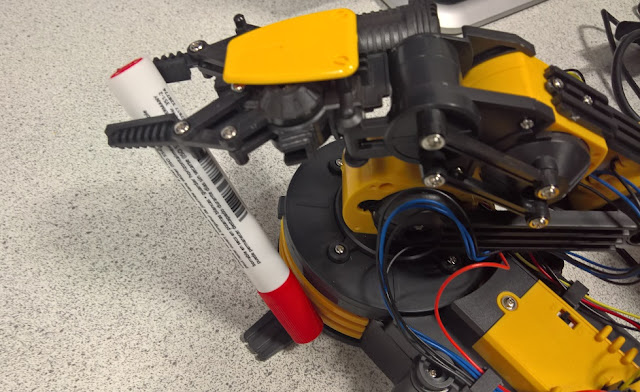
I recently bought a couple of Raspberry Pi FUZE computers with Robot arm kit.

FUZE powered Raspberry Pi with Robot Arm kit available on Amazon right now.

Check it out on Amazon: FUZE powered by Raspberry Pi (RPi V2) - FUZE-T2-R Teach Kids to Code Unit English Keyboard with Printed Project Cards & Robot Arm Kit - Black/Red

Thanks very much to Nathan and Sam for assembling the two arms.

The FUZE computer is very similar in feel to the old BBC Microcomputer, but it is a Raspberry Pi under the hood.  It does all the usual Raspberry Pi things with the addition of FUZE BASIC pre-installed: a dialect of BASIC that allows you to program the robot arms.  The feel of the user guide is very similar to the old BBC Microcomputer user manual.

The robot arms have five motors that can be activated individually.  These motors control the rotation of the base, the shoulder joints, elbow, the wrist and the gripper.  You can program it to pick up objects and move them around.  One project I intend to do is to use one of my robots as an automatic air freshener.  Every few hours the gripper will squeeze a can of freshener into the room.

Code to control the robot arm

When you first get your robot set up you will want to start to control it.  The code that comes with the FUZE BASIC instruction book is rather limited.  I wanted finer control over the start and stop of the motors as well as the ability to control several of the machine's motors at once.

Presented here is my first attempt at some control code for the robot should it be of use to anyone.

You use the cursor keys to control the body and shoulder; Q/A/W/S for the wrist and elbow; Z/X for the gripper; ENTER to toggle the light, and SPACE for 'emergency stop' (you will need it!).  Type the program into the FUZE BASIC editor, or copy from this page and save it as 'robot.fuze'.  If in doubt contact me and I'll send you the file for your pi.

REM version 1.0.0.3
PROC resetArm
PROC displayInstructions


leftBodyOn = FALSE
rightBodyOn = FALSE
upShoulderOn = FALSE
downShoulderOn = FALSE
upElbowOn = FALSE
downElbowOn = FALSE
upWristOn = FALSE
downWristOn = FALSE
openGripperOn = FALSE
closeGripperOn = FALSE
lightOn = FALSE


CYCLE
key = INKEY
SWITCH (key)
REM right cursor - move body right
CASE 331
IF rightBodyOn THEN
armBody (0)
rightBodyOn = FALSE
    ELSE
armBody (1)
rightBodyOn = TRUE
ENDIF
ENDCASE

REM left cursor - move body left
CASE 330
IF leftBodyOn THEN
armBody (0)
leftBodyOn = FALSE
ELSE
armBody (-1)
leftBodyOn = TRUE
ENDIF
ENDCASE

REM space - reset
CASE 32
PROC resetArm
ENDCASE

REM up cursor - move shoulder up
CASE 332
IF upShoulderOn THEN
armShoulder (0)
upShoulderOn = FALSE
ELSE
armShoulder (1)
upShoulderOn = TRUE
ENDIF
ENDCASE

REM down cursor - move shoulder down
CASE 333
IF downShoulderOn THEN
armShoulder (0)
downShoulderOn = FALSE
ELSE
armShoulder (-1)
downShoulderOn = TRUE
ENDIF
 
ENDCASE

REM W - move elbow up
CASE 87, 119
IF upElbowOn THEN
armElbow (0)
      upElbowOn = FALSE
ELSE
      armElbow (1)
upElbowOn = TRUE
    ENDIF
ENDCASE

REM S - move elbow down
CASE 83, 115
IF downElbowOn THEN
armElbow (0)
      downElbowOn = FALSE
ELSE
armElbow (-1)
downElbowOn = TRUE
ENDIF
ENDCASE

REM Q - move wrist up
CASE 81, 113
IF upWristOn THEN
armWrist (0)
upWristOn = FALSE
ELSE
armWrist (1) 
upWristOn = TRUE 
ENDIF
ENDCASE

REM A - move wrist down
CASE 65, 97
IF downWristOn THEN 
armWrist (0)
downWristOn = FALSE
ELSE   
armWrist (-1) 
downWristOn = TRUE
ENDIF
ENDCASE

REM Z - close gripper
CASE 88, 120
IF closeGripperOn THEN   
armGripper (0)
closeGripperOn = FALSE
ELSE
armGripper (-1)
closeGripperOn = TRUE
ENDIF
ENDCASE

REM X - open Gripper
CASE 90, 122
IF openGripperOn THEN
armGripper (0)
openGripperOn = FALSE
ELSE
armGripper (1)
openGripperOn = TRUE
ENDIF
ENDCASE

REM ENTER - light on/off
CASE 13
IF lightOn THEN
armLight (0)
lightOn = FALSE
ELSE
armLight (1)
lightOn = TRUE
ENDIF
ENDCASE
ENDSWITCH

REPEAT

STOP


DEF PROC resetArm
armBody (0)
armShoulder (0)
armElbow (0)
armWrist (0)
armGripper (0)
armLight (0)
ENDPROC

DEF PROC displayInstructions
CLS
fontScale (2, 2)
INK = Red
PRINT "The Robots are revolting!"
INK = White
hvTab (0, 2)
INK = Green
PRINT "BODY and SHOULDER"
INK = White
PRINT "Cursor keys"
PRINT
INK = Green
PRINT "WRIST up/down"
INK = White
PRINT "Q/A"
PRINT
INK = Green
PRINT "ELBOW up/down"
INK = White
PRINT "W/S"
PRINT
INK = Green
PRINT "GRIPPER close/open"
INK = White
PRINT "Z/X"
PRINT
INK = Green
PRINT "LIGHT on/off"
INK = White
PRINT "ENTER"
PRINT
INK = Green
PRINT "EMERGENCY STOP"
INK = White
PRINT "SPACE"
PRINT
ENDPROC


I thoroughly recommend the FUZE or the robot arms (which will work with your current Raspberry Pi).  The robot will take about three hours to assemble and you will need a small screwdriver, a set of small pliers and a four 'D' batteries.

Raspberry Pi Sense HAT data logger

I have been working on a command line temperature/humidity/pressure data logger for my Raspberry Pi Sense HAT.

You can get the Python code from this folder.

The data logger command line running on the Raspberry Pi 2 showing all available commands.

The script provides the following commands for accessing the Sense HAT sensors:


  • temp (gets the current temperature)
  • pressure (gets the current air pressure)
  • humid (gets the current relative humidity)
  • time (gets the current time/date)


You can also set up a 'log' which will automatically log data from the sensors to a csv file. The duration of the log run and the time interval between measurements can be set through commands.

This log shows the change in temperature and humidity over a few hours.
Running a log.

Sense HAT data logger 01

OK it is day two with my Raspberry Pi Sense HAT and here is my first attempt at a data logger program.  You can read about my first day with Sense HAT and the problems I have encountered so far.


This program simply logs the time, temperature, humidity and air pressure every six seconds.  The data is saved into a text file for later inspection.


Is it getting hot in here? Actually this is the temperature of the air just near the CPU (I am actually really cold right now in my hovel - please send warm jumpers).

I have read the output file over my home server and produced this graph in Windows 10.


# Data Logging App
# Logs the time, temperature, humidity and air pressure
# Tim Street
# 2015-01-14
#
# version history
# ---------------
# 1.0.0.1
#   logger class with time, temp, humidity and pressure

from datetime import datetime
import time
from sense_hat import SenseHat

VERSION = "1.0.0.1"
FILE_PATH = "log.csv" # file path used to log data


class logger:
    """ A logger provides methods for reading the sensor values and saving to a file """
    def __init__(self, filepath):
        self.__time = 0
        self.__temp = 0
        self.__humidity = 0
        self.__pressure = 0
        self.__sense = SenseHat()
        self.__savepath = filepath

    def __str__(self):
        """ String representation of logger """
        return "Time:\t\t"+str(self.getTime())+"\nTemp:\t\t"+str(self.getTemp())+"C\nHumidity:\t"+str(self.getHumidity())+"%\nPressure:\t"+str(self.getPressure())+"mb"

    def __toCSV(self):
        """ Retuns a CSV file line """
        return str(self.getTime())+","+str(self.getTemp())+","+str(self.getHumidity())+","+str(self.getPressure())+",\n"

    def __setTime( self ):
        """ sets log to current date and time """
        self.__time = datetime.today()

    def getTime(self):
        """ returns the date and time from the log """
        return self.__time

    def __setTemp(self):
        """ logs the current temperature """
        self.__temp = self.__sense.get_temperature()

    def getTemp(self):
        """ returns the temperature """
        return self.__temp

    def __setHumidity(self):
        """ logs the current humidity """
        self.__humidity = self.__sense.get_humidity()

    def getHumidity(self):
        """ returns the humidity """
        return self.__humidity

    def __setPressure(self):
        """ logs the current air pressure """
        self.__pressure = self.__sense.get_pressure()

    def getPressure(self):
        """ returns the pressure """
        return self.__pressure

    def update(self):
        """ updates all sensors """
        self.__setTime()
        self.__setTemp()
        self.__setHumidity()
        self.__setPressure()

    def save(self):
        file = open(self.__savepath, 'a')
        file.write( self.__toCSV() )
        file.close()
        
#main

log = logger( FILE_PATH )
while True:
    log.update()
    log.save()
    print(log)
    time.sleep(6)
    

The program needs to append a comma separated file "log.csv" which you can create yourself, or run the script below to create it automatically.

# creates a new output file
file = open("log.csv", "w")
file.write("time,temp /C,humidity /%,pressure /mb\n")
file.close()

Features I intend to implement next:
  • Command line interface
  • Multiple logs by name
  • Option to toggle sensors on off
  • Variable log sleep time
  • LED matrix icons for each state - 'ready', 'sensing', 'writing', 'sleeping'
Well that's it for now, but do check back soon!

#raspberrypi #pi #sensehat #python #datalogging

Label

World Karma Game