

I have recently been exploring alternative software to OneNote. OneNote works really well for me and it is my main note-taking app. I like how I can easily organise my thoughts into a hierarchical structure that synchronises across all my devices. In fact OneNote has for a long time replaced my own memory. I mainly use it as a 'rough work book' for my own ideas, as well as a collaborative space to work with colleagues. I really like how I can make a new quick note from the taskbar in Windows 10, or from my Windows phone or Android tablet when I am on the move. I can start with a quick idea when I am on my Lumia 950 and then finish the task as a 365 document later on. On my Surface device, the OneNote notebook works very well with the surface pen and feels almost exactly like a fine line pen on paper.
In fact, although this articles will deal with some interesting note-taking applications, I do think that OneNote is the king.
There is Evernote, of course, however I have always thought of this as a poor-man's alternative to OneNote. The free version currently only allows me to use the application on a maximum of two devices at once. This limitation has instantly turned me away from using Evernote and I am very unlikely to ever go back to it.
I have used TreePad a few times. The free version allows you to organise a set of notes as a hierarchical tree structure. Your notes can be exported as HTML for sharing with others. The free version has a look and feel similar to your default text editor albeit with a tree structure for organisation. The paid for versions have more advanced features including a full word-processor style of interface and custom styles amongst many other features.
Treepad files (including the node structures) are plain text files, and so it is fairly easy to generate treepad files programmatically in the language of your choice.
Another note taking app I use is Action Note for Windows. This is a note taking app that sits in your action center. I use this for taking quick notes on my phone and synchronising with my PC. I have already written a blog post covering Action Note last year.
Zim
Zim is a 'wiki for your desktop'. Just like in OneNote and TreePad you maintain your notes as a hierarchical tree structure. Each page can include text and images, with a bunch of plug-ins available including task manager and equation editor.
Zim pages are formatted in a wiki structure that allow links to other pages in the document. Creating a new node is as simple as linking to a non-existent page. Links are maintained in a simple mark-up syntax, such as :Notes:page1 or +newpage.
Zim notebooks can be exported as HTML pages with various pre-set templates. Indeed the Zim website itself was written in Zim.
I have only just discovered Zim, and as such have not got much to show for it, however I can already see that it has many advantages over TreePad most notably the fact that it is a free download; can run across Linux and Windows, not to mention the simple node creation and exporting features. Until discovering Zim, I was considering paying for the full version of TreePad PLUS, however now I don't think I will bother.
Video Time
In fact, although this articles will deal with some interesting note-taking applications, I do think that OneNote is the king.
There is Evernote, of course, however I have always thought of this as a poor-man's alternative to OneNote. The free version currently only allows me to use the application on a maximum of two devices at once. This limitation has instantly turned me away from using Evernote and I am very unlikely to ever go back to it.
I have used TreePad a few times. The free version allows you to organise a set of notes as a hierarchical tree structure. Your notes can be exported as HTML for sharing with others. The free version has a look and feel similar to your default text editor albeit with a tree structure for organisation. The paid for versions have more advanced features including a full word-processor style of interface and custom styles amongst many other features.
 |
TreePad Lite (free version) running in Windows 10 showing the tree structure.
|
 |
| TreePad document structure of TreePad PLUS (paid for version) showing custom icons/font and other goodness. |
Treepad files (including the node structures) are plain text files, and so it is fairly easy to generate treepad files programmatically in the language of your choice.
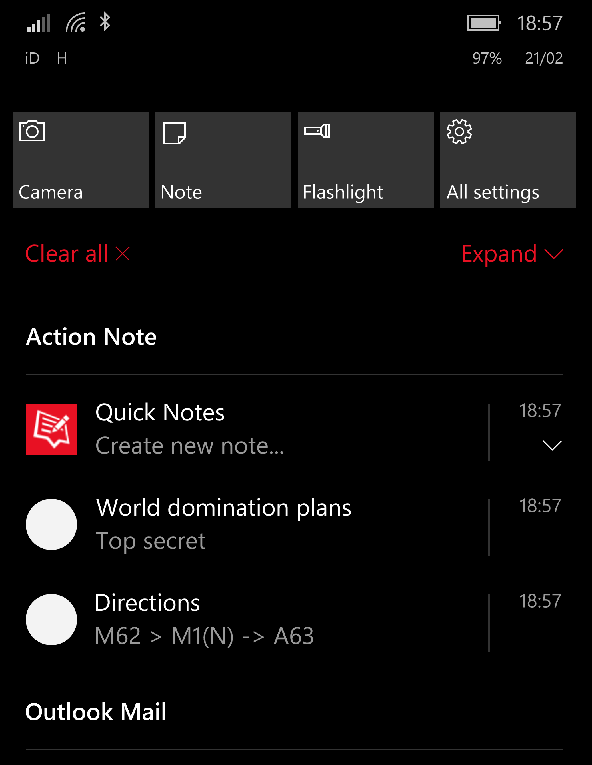 |
| Action Note - note taking in your action center |
Another note taking app I use is Action Note for Windows. This is a note taking app that sits in your action center. I use this for taking quick notes on my phone and synchronising with my PC. I have already written a blog post covering Action Note last year.
Zim
Zim is a 'wiki for your desktop'. Just like in OneNote and TreePad you maintain your notes as a hierarchical tree structure. Each page can include text and images, with a bunch of plug-ins available including task manager and equation editor.
Zim pages are formatted in a wiki structure that allow links to other pages in the document. Creating a new node is as simple as linking to a non-existent page. Links are maintained in a simple mark-up syntax, such as :Notes:page1 or +newpage.
Zim notebooks can be exported as HTML pages with various pre-set templates. Indeed the Zim website itself was written in Zim.
I have only just discovered Zim, and as such have not got much to show for it, however I can already see that it has many advantages over TreePad most notably the fact that it is a free download; can run across Linux and Windows, not to mention the simple node creation and exporting features. Until discovering Zim, I was considering paying for the full version of TreePad PLUS, however now I don't think I will bother.
 |
| The Zim manual, written using Zim. |


