Showing posts with label note taking apps.. Show all posts

This app auto-saves your Windows clipboard

Last time I introduced Doctor Clippy - a tool for saving your Windows clipboard to a text file. It was only upon completing the project that I realised that there was something missing.

Windows Clipboard before the release of Windows 3.1

Instead of manually saving the clipboard every time you press 'copy', most people will want to be less selective (read 'lazier') and wish the program automatically saved the clipboard every time they press 'copy'.

Introducing Captain Clip! This program runs in the background auto-saving your clipboard. Every time you press CTRL+C or 'copy', the program copies the text into a text file for you - whether you want it or not.

You are limited to ten thousand bytes of data with each clip (the program will truncate otherwise) and you get a fresh new file every day so you can see what you have been copying easily throughout history.

Download Captain Clip now (version 1.1.1.2)

If you enjoyed this post, then once you have recovered yourself, you may wish to look at some snakes or just something at random.

This tool saves your clipboard to a file

Have you ever wished there was an easier way of copying multiple sections from one document or webpage?


Doctor Clippy is a tool that performs just one job. Every time it runs it saves the contents of your Windows clipboard to a text file. Need to plagiarise a website? No problem: CTRL+C, then run Doctor Clippy. Do you need to cherry-pick the latest article? No problem: CTRL+C, then run Doctor Clippy.

Text that has been copied is saved to a time-stamped text file. With a slight tweak to the configuration settings, text can instead be appended to the end of a single file (all your clips in one place).

You can also specify the location that Doctor Clippy uses to save your clips.

DOWNLOAD DOCTOR CLIPPY NOW

If there is more interest, I will add functionality to save images and anything else that makes it all easier to use. For now, follow the above links to try the first version.

Want more like this? Really?! Well, if so, you might be interested in The NO-NONSENSE CLOCK OR Why you are probably writing dates wrong.

See you for more fun and games in the future.


Update to Notey

Update to Notey

This is just a quick update to last week's post about Notey - command line notebook. I have made a few bug fixes and added two new features that I will discuss in this post.

If you have been following this blog then you will know that Notey is a python script for creating and maintaining a command-line notebook. Literally a set of notes that you can easily manipulate, search and edit. Think of it like Google Keep but running in a command line on your Raspberry Pi.

Refs

Suppose you are writing a note about Topic A. Inside the note, you may reference Topic B and Topic C. At this point you realise that you need to have a new page called 'Topic B' and 'Topic C' respectively.

It may be the case that as you are typing a note, you need to create a second page (or many pages) for example. If you were to type:

> append My pets include one |cat|, one |dog| and one |unicorn|.

Notey will dutifully create new pages called 'cat', 'dog' and 'unicorn' respectively. The pipe symbols will be removed automatically from the page description, so your page will read "My pets include one cat, one dog and one unicorn."

Index

The comprehensive Notey help documentation that you know and love.

The new index feature of Notey allows you to generate an alphabetised index of all the words contained within your notes. The list shows the word and the pages in which that word exists. For example, if you know that you typed the words 'teenage', 'mutant', 'ninja' and 'turtle' somewhere in your notes, but you are not sure which notes, and indeed, how many other notes have the same information, then index will, well do what an index in a book does - shows you the page references for those words. 

You generate an index with the simple command:

> index

There are further options, for example, you can force Notey to NOT ignore the common stop words, such as 'and', 'she' and 'the'.

You can also force Notey to NOT ignore the shorter words in general (by default Notey will only list words of size four or above).

You can also create new pages on the fly. with the -c option, Notey will pause after each word and ask you whether you want to create a new page named as the current word, assuming it doesn't already exist.

Download

I am still actively developing Notey, so no doubt it will change further over time. If you are interested in finding out more or want to download the python code or the Windows executable, then all is explained in my first blog post on the subject.

If you parachuted into this page from somewhere else on the web, but you like the cut of my jib, then you might like to stick around and read some more of my stuff. I can recommend:


Notey: a command line notebook

Introducing Notey: command-line notebook.
The glorious ASCII graphics of another command-line session.

I have a real need to keep and remember short snippets of text, for example, my phone number, real name and world-domination plans. Over the years I have used many applications, such as OneNote, Google Keep, Zim, Treepad Lite, Sticky notes etc...etc, but I feel the need for a simpler app, one without any graphical fuss and nonsense. I want the same program to run just as well under Windows as it does under the Linux shell or on my Raspberry Pi. So, with the bit of time I have had on my hands in the current UK lockdown, I have built Notey: command line notebook.

Introduction

You can think of Notey as a bit like Google Keep, but you interact with a series of text commands. I am not 100% serious about this, however, it does work well and is quite powerful in terms of the actions you can perform on your data. There is a comprehensive help system built-in and the very first command you will want to learn is 'help'.
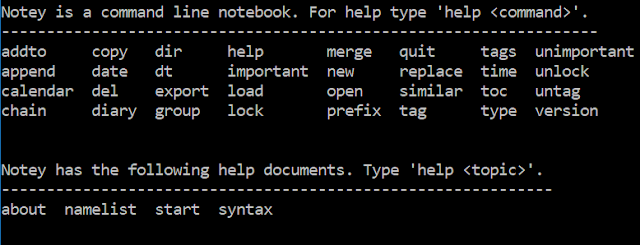
32 commands are available, but you are not expected to remember them all.

Making new pages

Notey is simply a big list of named 'pages'. The first thing you will want to do is create a new page. This is achieved with the 'open' command, for example:

> open cat
This will prompt you to create a new page called 'cat'.
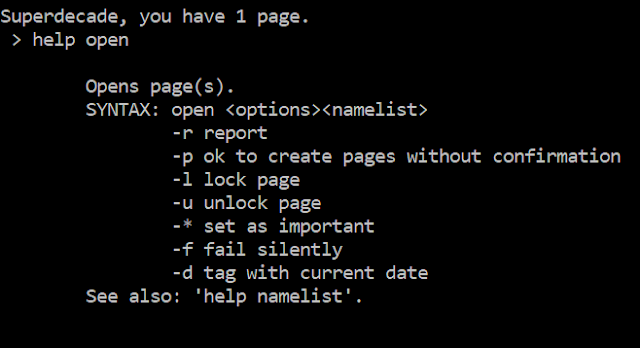
The in-built help documentation for the 'open' command.

As you can see, the 'open' command is used for creating new pages as well as opening existing pages. Most commands in Notey can take various options as parameters (shown above), for example, if you are really sure that you want to create a new page called 'cat' (and not open an existing page called 'cat'), you could type the following:
> open -p cat
Commands can take multiple options, for example:

> open -rpl*d cat

Will create a new page called 'cat', lock it so it cannot be accidentally deleted, automatically tag it with today's date and mark it as 'important'. The option -r then returns a little report showing you what Notey has been up to whilst you were waiting, as you can see in the image below.
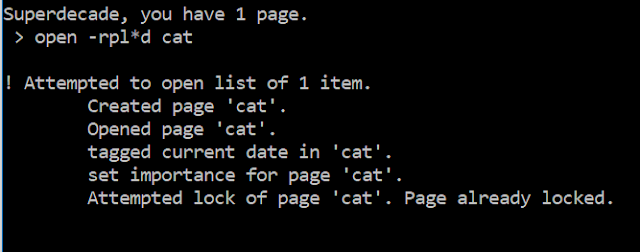
Isn't everyone's cat important?

Editing pages

When you have a page open, you will see the page name appears just before the prompt. Pages that are thus 'opened' can be edited in a number of ways. You are most likely to want to add some text to this page.

For example, you could try the following command:

> append Not a dog.

This will enter the text "Not a dog." into this page. Except - it probably won't! You will get an error. Remember how we locked the page in the previous command? Locked pages cannot be (accidentally) edited, so we have to specify that we intend to purposefully unlock our page, edit it and then lock it again.

Try:

> append -ul Not a dog.
> append -ul Like's fishes.

OK. Big wow! You will probably want to see your handiwork. To view a page on the screen, simply type:

> type
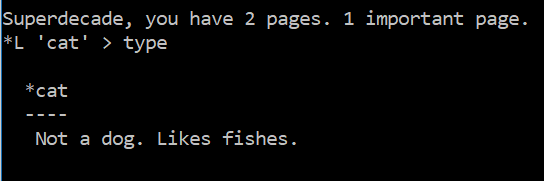
Notey has rather helpfully done a lot here. It has reminded me of my own name, as well as the number of pages I have written. It is showing me that my page 'cat' is currently open and that it is 'locked' and 'important'. When I type 'type', I get to read the note on the screen.


Currently, there are related commands for editing your pages, for example: 'prefix' and 'replace', but append will do for now.

Tags

Pages in Notey can be tagged so you can find related information easily.

Let's tag our page with a list of tags:

> tag pets,animals

This will add two tags, 'pets' and 'animals' to the current 'cat' page. We already tagged our page with the current date with the 'open -d' command earlier. Forgotten already? I don't know! Actually, it is easy to get a little confused at times when using Notey, but thankfully there are a number of ways of getting information on what you are doing.

Table of contents

You will want to see what pages you have available in your notebook. The 'toc' command brings up a table of contents. You may want additional information such as a page summary, or list of tags.

Try:

> toc -t

This will display all the pages in the book including a summary of the tags for each page.
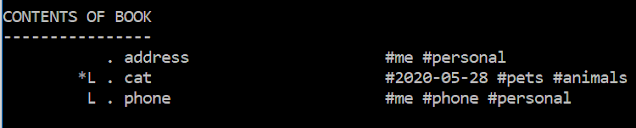
Now I will never forget my own address again.

You can also specify a search term to filter the table of contents. For example, need to see only those pages with 'cat' in the title? Try:

> toc -t cat

If you need more advanced filtering then you need to get your head around the 'group' command.

Grouping

Groups allows you to group pages based on a search term or tag name or other property. This allows you to apply commands to all the pages in the group. For example, if you need to add the text 'remember to feed' to all pages with 'cat' in the description, that have been marked as 'important' and have been tagged as '#animals', then you need to get your head around groups.

> group -t pets

Will find all of the pages with a tag '#pets' and put them into the group.

> toc -t@

Will show the table of contents for the current group.


If you search the help documents for the various commands, you can see that the '@' symbol refers to 'all pages in the group'. For example, if you want to append some text to all the pages in the group, try:

> append -@ Remember to feed.

OK - admit it! How many note-taking apps let you edit multiple pages at the same time?

This is the power of groups in Notey. There is also an 'addto' command, which allows you to manually add pages to the group, and the 'similar' command, which lets you see similar pages.

Similar pages

OK, so, you have spent your time carefully categorising your notes with sensible names and a comprehensive library of tags. Now, it is time for the 'similar ' command. It groups pages from your notebook that are 'similar' to the currently open page.

Namelists

You will frequently want to apply the same command to multiple pages at once. This is where namelists come in.

Try:

> open cat,dog,unicorn

This will prompt you to create three pages called 'cat', 'dog' and 'unicorn' respectively.

You can use the '@' symbol to refer to the current group. For example:

> del cat,unicorn,@

Will prompt you to delete the pages called 'cat', 'dog' and whatever pages are in the current group.

Other stuff, briefly...

A quick tour of some of the other features of Notey.

Your pages can be exported to XML, HTML, plain text or Treepad Lite files.

My Notey notebook as a Treepad lite file (OK, more about Treepad lite another time - spoiler alert - it is no longer a thing but that does not mean it is gone forever!)

You can use Notey as a diary. Simply type:

> diary

This creates a page with the current date for you to record all of your evil machinations from the day (or your good deeds).

You can get a calendar for any month (within reason):

> calendar 2020 06
Next month. Unless you are living in the future (which you most likely are) in which case you know more about June 2020 than I do. It can't get any worse can it? Can it?! Why are you laughing??!

Chain

Notey can accept multiple commands on one line using the 'chain' command.

Eg:

> chain open cat; tag animals; lock

In this case, Notey will diligently open the page 'cat', tag it '#animals' and then lock it. It is vital that each command is separated by a semi-colon.

Future updates

Some things that still need doing:
  • importing pages from files;
  • running scripts from a file;
  • hiding sensitive data;
  • exporting to other formats (MS-Word, anyone?)
There are, no doubt, many bugs, and a lot that could be done more efficiently. But the source code is provided for your entertainment.

Th..th..that's all folks!

Well, that's it for this introduction. I hope you can see that Notey is a powerful personal information management system. There is much more that it can do, but you will have to explore this yourself. Remember it is just for fun and not super secure so it is not a good idea to store sensitive information at this stage.

Notey is currently in an alpha release stage. You are free to download either the python source code or the Windows executable version and do what you like with it. I am sure that I will be adding more functionality soon, and I will be encouraged by anyone who finds it useful - so Tweet ME.


...or click this OneDrive link below...


If you enjoyed this post, then it shows that you have great taste, and you might like to read more of my stuff

A wiki for your desktop

I have recently been exploring alternative software to OneNote. OneNote works really well for me and it is my main note-taking app. I like how I can easily organise my thoughts into a hierarchical structure that synchronises across all my devices. In fact OneNote has for a long time replaced my own memory. I mainly use it as a 'rough work book' for my own ideas, as well as a collaborative space to work with colleagues. I really like how I can make a new quick note from the taskbar in Windows 10, or from my Windows phone or Android tablet when I am on the move. I can start with a quick idea when I am on my Lumia 950 and then finish the task as a 365 document later on. On my Surface device, the OneNote notebook works very well with the surface pen and feels almost exactly like a fine line pen on paper.

In fact, although this articles will deal with some interesting note-taking applications, I do think that OneNote is the king.

There is Evernote, of course, however I have always thought of this as a poor-man's alternative to OneNote. The free version currently only allows me to use the application on a maximum of two devices at once. This limitation has instantly turned me away from using Evernote and I am very unlikely to ever go back to it.

I have used TreePad a few times. The free version allows you to organise a set of notes as a hierarchical tree structure. Your notes can be exported as HTML for sharing with others. The free version has a look and feel similar to your default text editor albeit with a tree structure for organisation. The paid for versions have more advanced features including a full word-processor style of interface and custom styles amongst many other features.

TreePad Lite (free version) running in Windows 10 showing the tree structure.


TreePad document structure of TreePad PLUS (paid for version) showing custom icons/font and other goodness. 

Treepad files (including the node structures) are plain text files, and so it is fairly easy to generate treepad files programmatically in the language of your choice.

Action Note - note taking in your action center

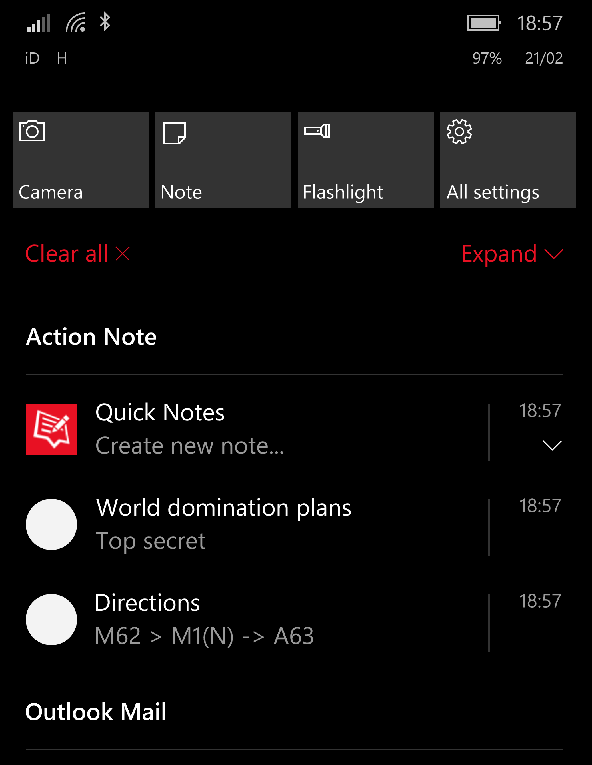
Another note taking app I use is Action Note for Windows. This is a note taking app that sits in your action center. I use this for taking quick notes on my phone and synchronising with my PC. I have already written a blog post covering Action Note last year.

Zim

Zim is a 'wiki for your desktop'. Just like in OneNote and TreePad you maintain your notes as a hierarchical tree structure. Each page can include text and images, with a bunch of plug-ins available including task manager and equation editor.

Zim pages are formatted in a wiki structure that allow links to other pages in the document. Creating a new node is as simple as linking to a non-existent page. Links are maintained in a simple mark-up syntax, such as :Notes:page1 or +newpage.

Zim notebooks can be exported as HTML pages with various pre-set templates. Indeed the Zim website itself was written in Zim.

I have only just discovered Zim, and as such have not got much to show for it, however I can already see that it has many advantages over TreePad most notably the fact that it is a free download; can run across Linux and Windows, not to mention the simple node creation and exporting features. Until discovering Zim, I was considering paying for the full version of TreePad PLUS, however now I don't think I will bother.

The Zim manual, written using Zim.
Video Time


Label

World Karma Game